

Usage & budget
See what you've spent this month, how much of your department's budget is yours to use, and what to do when you need more.
Every model call is priced and attributed the moment it happens; this page is your view of that. Open it from your name at the foot of the rail › Settings › Usage & budget. Only you can see it.
How your share works
Every request is billed to your departmentDepartmentPhòng banThe bucket that pays: it owns a budget, limits and which models its people may use. Everyone belongs to exactly one.Open in glossary. Its monthly budgetBudgetNgân sáchThe monthly amount a level may spend on models — organisation default, department or person. The most specific level that is set wins.Open in glossary is divided equally between its members — that slice is your shareSharePhần chiaYour equal part of your department's budget: the budget divided by the active people billed to it, rounded down to the cent.Open in glossary. A department holding 300 USD with three people gives each of them 100, and that is the figure your requests are stopped at. The policy panel names it and how many people it divides between, so a department that takes somebody on narrows everybody’s share that day.
The person with their own limit still counts in the headcount, but spends from their own record — so they take nothing from the shared pool, and nobody else's share moves when the limit is granted.
Both limits are live at once:
| Limit | When it’s reached |
|---|---|
| Your share | When you reach it, your requests are declined — other people in your department carry on. |
| Department budget | When everyone together reaches it, everybody in the department is declined until the month resets. |
| Threshold | Effect |
|---|---|
| Soft alertAlert (soft limit)Cảnh báo (ngưỡng mềm)The point, 80% by default, where a budget alert is raised. Nothing is refused.Open in glossary | Past this percentage of your share or of the department budget, an alert names you or the department on the administration dashboard. |
| Hard stopStop (hard limit)Dừng (ngưỡng cứng)The point, 100% by default, where new model calls are refused until the budget resets next month.Open in glossary | At this percentage the requests it covers are declined until the month resets or somebody raises the budget. |
Both percentages come from your organisation’s policy and appear on the Alerts row of the policy panel — the values in the screenshots are only examples.
- An administrator may give one person limits of their own, which replace their share and are not divided by anybody.
- A department’s numbers replace the organisation’s, higher or lower, because the most specific policy wins. See Budgets and policy.
Read the screen
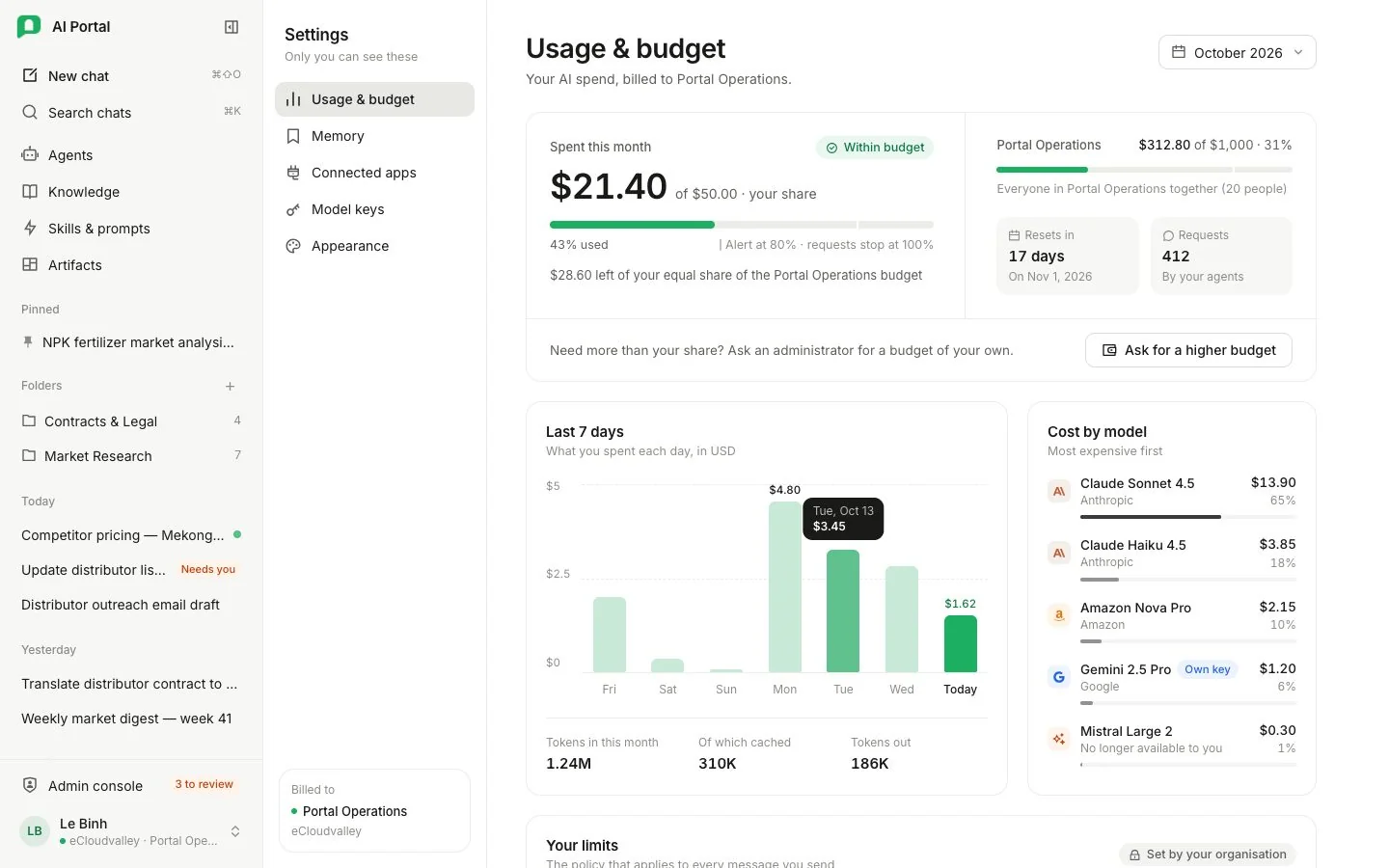
- 1 Month picker — the last twelve months.
- 2 Spent this month — with a status such as Within budget.
- 3 Your share meter — and when alerts and stops apply.
- 4 What’s left of your equal share this month.
- 5 Your department — everyone’s spend together against its budget.
- 6 Resets in — days until budgets restart on the 1st (UTC).
- 7 Ask for a higher budget.
- 8 Last 7 days — daily spend in USD.
- 9 Own key — billed to your own model key, not the department.
The month picker in the header chooses the month every card shows; the last twelve are offered. The sentence under the heading names the department you are billed to and what stops your requests. Days and months follow UTC, the same clock budgets reset on.
| Number | Meaning |
|---|---|
| Spent this month | What you spent, and how much of your share or own budget that is. |
| Requests | The model calls agents made for you. |
| Department budget | What everyone in your department spent together against its budget, or No limit when none is set. |
| Resets in | Days until budgets start again on the 1st. |
The budget card (current month only) sets You beside your department, each with what is left and a status such as Within budget. The department meter is the whole department’s spend, whoever you are. When you hold a budget of your own it reads Your own budget and is shown apart from the department’s. Where no budget is set the card says no limit set.
| Card | What it shows |
|---|---|
| Last 7 days | Daily spend in USD; for a past month, every day of it. Hover, tap or tab to a bar to read its value. Below it, tokens in, cached and out this month. |
| Cost by model | The month’s spend per model, ranked. A model on your own key is marked Own key. |
| Recent turns | One row per agent turn, each linking back to its conversation; Show more lists up to fifty. |
| Your limits | At the foot: who you are billed to, your share, the department budget, the speed limit and every model you can use. |
Ask for a higher budget
-
Open the request
Select Ask for a higher budget on the budget card. The dialog states the share you hold now.
-
Enter the amount
Monthly budget (USD) is the budget you want to be held to. It must be more than your current share; the hint under the field says by how much.
-
Say why you need it
Why you need it is shown to the administrator who decides. Be specific: what, how much, until when.
-
Send it
Send request sends it to an administrator who manages policies. One request waits at a time; while it waits, the card shows its status and a Withdraw button, which asks before withdrawing. If sending fails, the reason shows inside the dialog and nothing is lost.
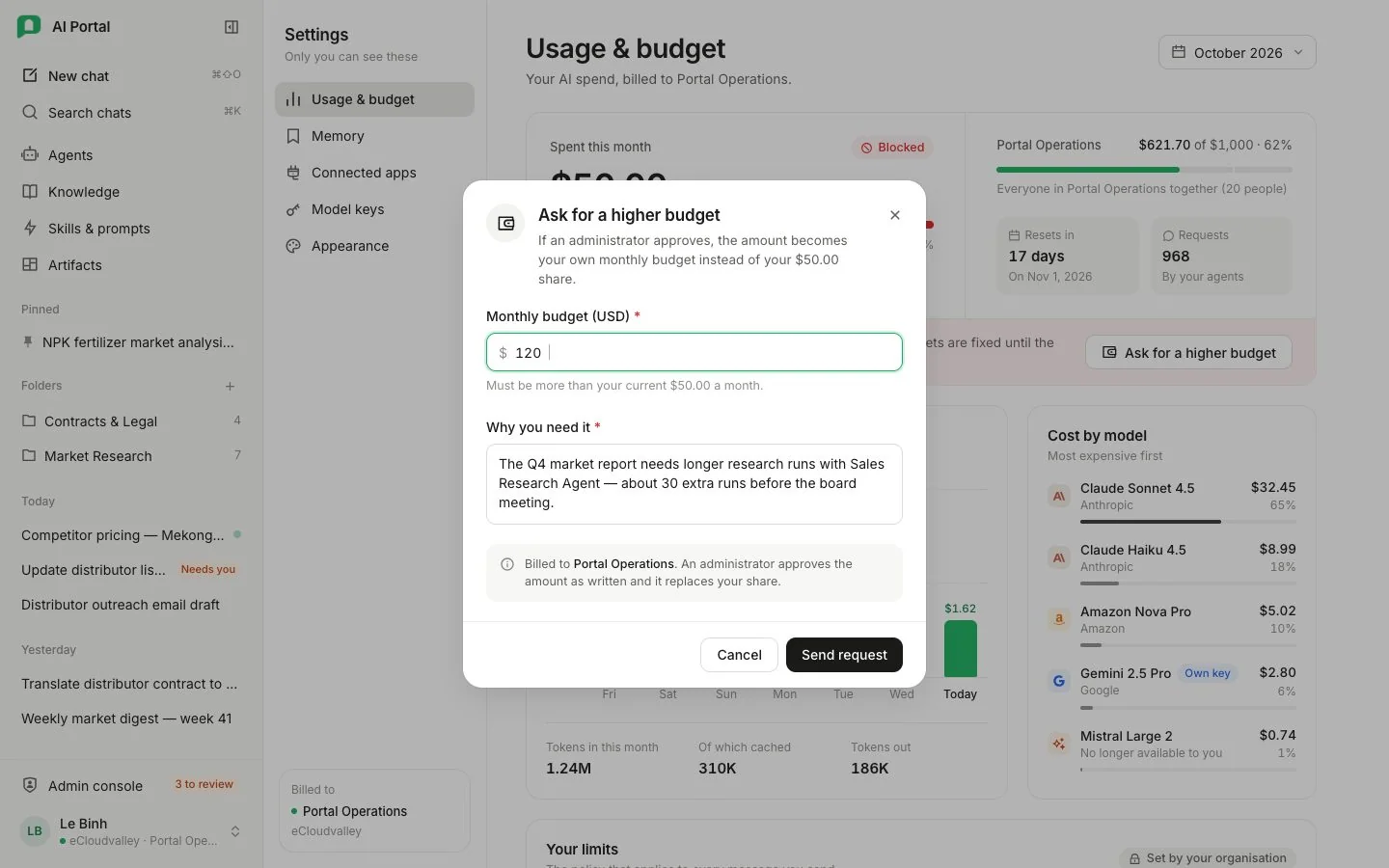
- 1 Monthly budget (USD).
- 2 Must be more than your current share.
- 3 Why you need it — shown to the administrator.
- 4 Billed to your department; approved as written.
- 5 Send request.
| Outcome | What happens |
|---|---|
| Approved | The figure becomes your own monthly budget in place of your share, and stays there until an administrator changes it. |
| Declined | You keep your share, and you see the note the administrator wrote. |
When you reach a limit
The reply stops and ends on a card that says why — for example Your department has used its AI budget for this period. What’s already written stays. Ask your administrator, or wait for the next period. See Troubleshooting.
Where the numbers come from
Each model call in a turn is logged on its own and grouped by turn, so a turn of six calls shows as one item costing the sum of six. Document ingests are logged the same way and carry their own total.
Why did my share get smaller?
Someone joined your department. The budget is split between more people from that day.
Do models I pay for with my own key count?
No. A key you added in Model keys is billed to that key’s own provider account, outside your department’s budget, and this page marks those rows as your own key.