

Files and artifacts in chat
Attach files to a message, and open what the agent made beside the conversation.
Attach files
-
Add the files
The + (paperclip) in the message box opens your device’s file picker, offering images, PDFs, Word, Excel and PowerPoint files, CSV and text files. Dropping and pasting also attach files. A message carries at most five files.
-
Send straight away
A file starts uploading as soon as you attach it, and you can send the message straight away: the agent waits for a document that is still being read.
A document is read from its text layer, and a scanned page by OCR; no model reads it. Making it searchable is billed to your department. Attaching the same file again later reuses what was already read.
Pictures and models
A picture attached while the chosen model cannot read images shows a line above the message box naming the model. Use followed by another model’s name switches to one you may use that reads images. When no model you may use reads images, the line says so.
Artifacts in a reply
When an agent writes a document, builds a chart, produces code or draws a diagram, the result becomes an artifactArtifactArtifactA file an agent creates for you during a chat — a document, spreadsheet, slide deck or small app — that you can open, download and share.Open in glossary. In the reply it appears as a compact row with its name, format and version. Click it to open that version beside the conversation. Consecutive artifacts share a single group; text between them stays in its original position.
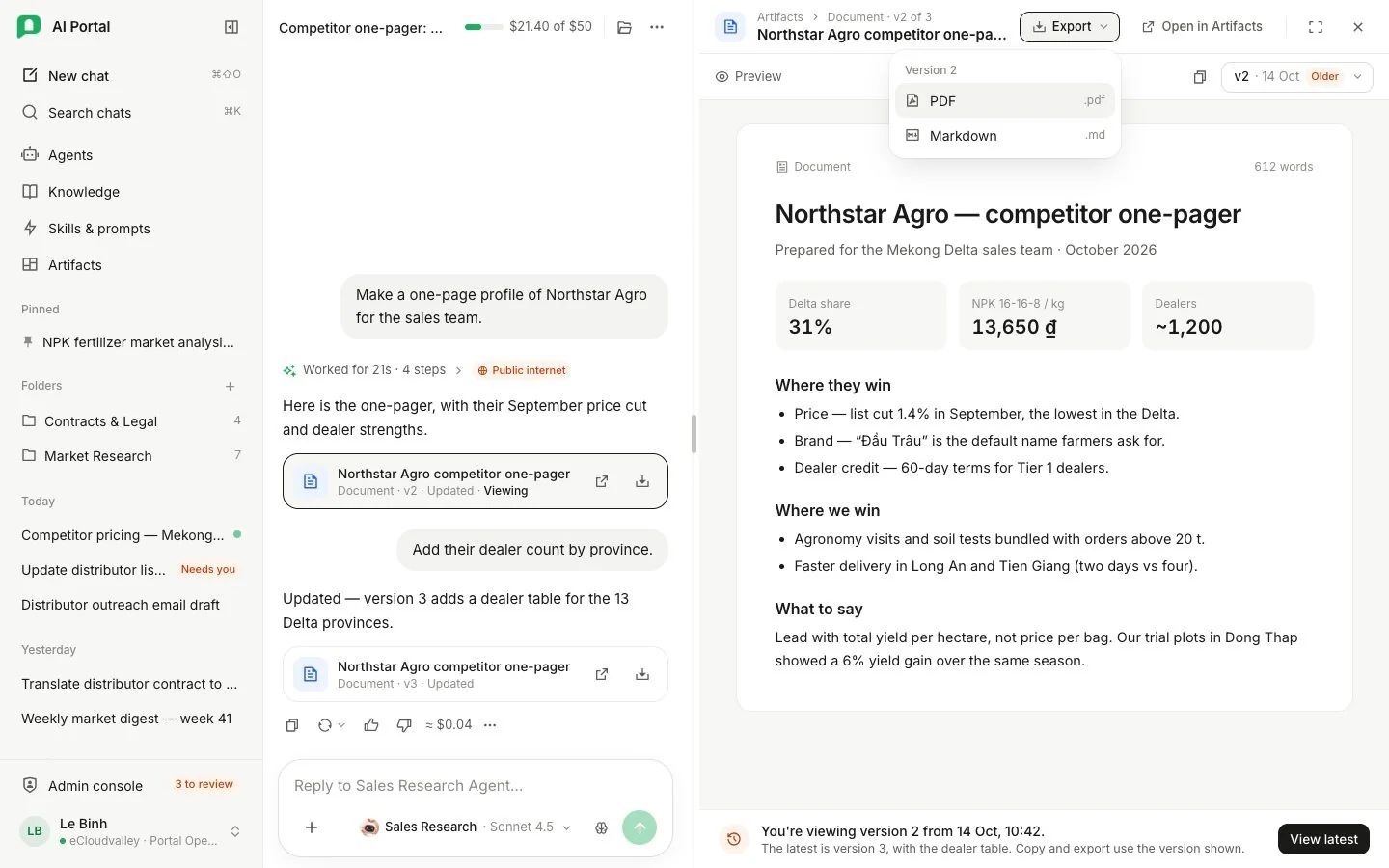
- 1 The artifact row — name, format and version; click to open it.
- 2 The divider — drag to resize; double-click restores the default.
- 3 Export — downloads the version you are viewing.
- 4 Version picker — open a different revision.
- 5 Expand artifact — fill the screen; Escape restores the split.
- 6 Viewing an older version — and a way back to the latest.
- The viewer starts at about 62% of the workspace. Drag the divider to resize it; the browser remembers your choice. You can also focus the divider and use the arrow keys, or double-click it to restore the default width.
- Download (or Export) saves the version you are viewing. The version picker opens a different revision; a new revision arriving in the chat keeps your current selection.
- Expand artifact fills the screen, and Esc restores the split view. Esc again closes the viewer and returns to the conversation.
- On a small screen, the viewer covers the conversation. Close it to return to the same draft and scroll position.
Formats, previews, versions and sharing are covered in Artifacts.