

Files, folders and documents
Inside a knowledge base — uploading, filing in folders, moving, searching, and the document page with Re-process.
Inside a knowledge base
A base opens on its files, with three tabs across the top: Files for reading what is in it, Sources for what each feed last did, and Access for who may read the base. Somebody who can only read the base sees Files alone.
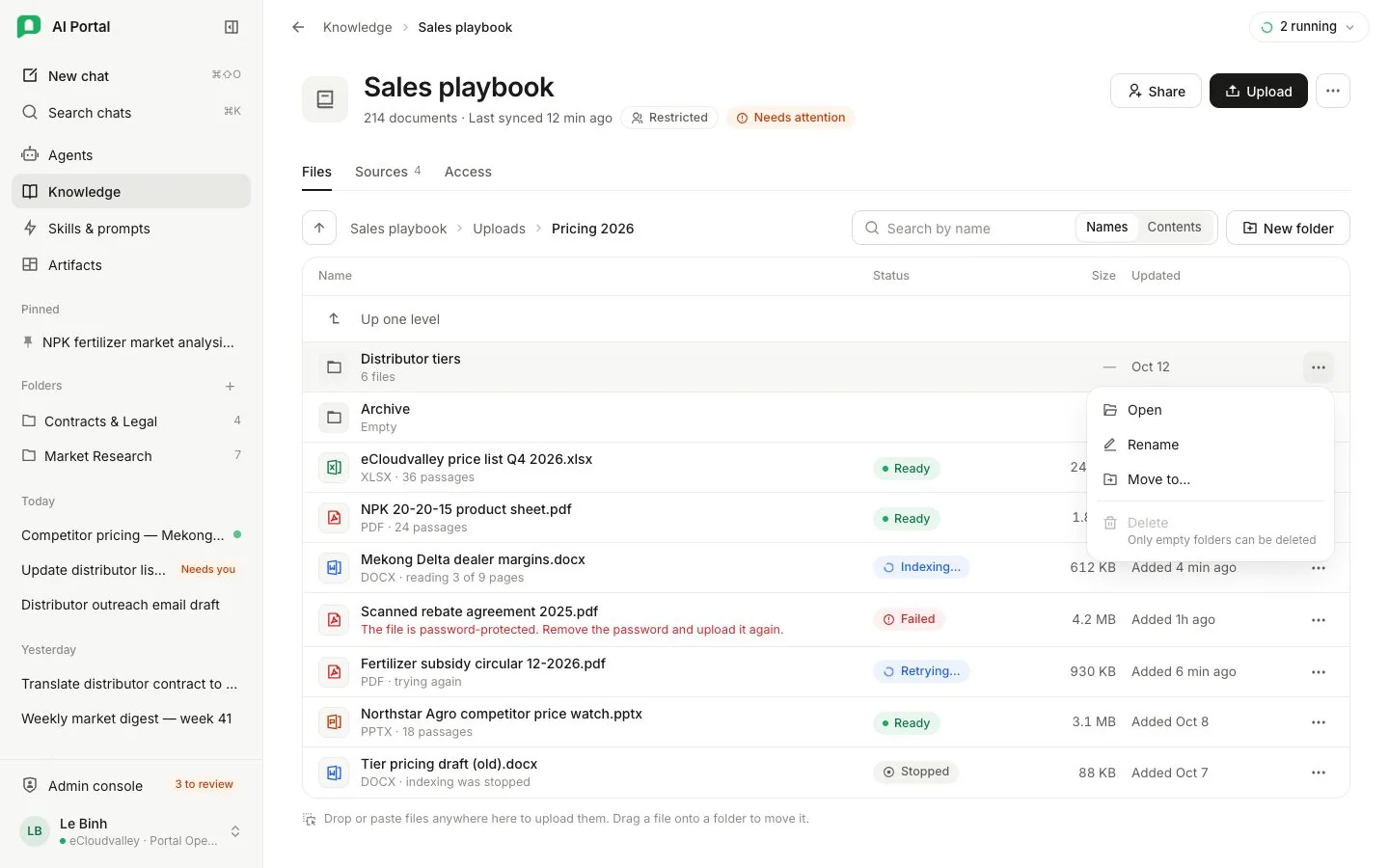
- 1 Header — the worst thing true of the base, such as Needs attention.
- 2 Upload — add files to the folder you’re in.
- 3 Files, Sources and Access tabs.
- 4 The trail — where you are; click to walk back out.
- 5 Search by Names or Contents.
- 6 New folder.
- 7 A row’s menu — Open, Rename, Move to…, Delete.
- 8 A failed file — the first line of its reason.
- The header shows the worst thing true of the base, such as Sync failed, 2 files failed or Indexing 3 files; a ⋮ menu for removing it from your library or deleting it; and Upload files.
- A link to a base that is not in your library still opens it, with Add to library above it.
- The Files tab starts at the sources feeding the base, each counting what it holds. Opening one walks into the folders the documents arrived in, a level at a time. A folder row says how many documents sit beneath it at any depth. A file row shows its type, how many passages it produced and when it last synced, and opens the document’s own page.
| Control | What it does |
|---|---|
| Upload files | Takes files from your machine and asks how to read them, the same choice for every file in that upload. Dropping or pasting them on the Files tab reads them at the Uploads default. You are told when each file is ready, or why it failed. Either way they land in the upload folder you are standing in, or at the top of Uploads when you are elsewhere. |
| New folder | Adds a folder to Uploads where you stand, or at its top from the list of sources. An empty folder is kept until somebody deletes it. |
| Add SharePoint folder | On the Sources tab: files a folder the organisation’s SharePoint tool may read, on a schedule. See Add a SharePoint folder. |
| Sync now | On a SharePoint source, on either tab, pulls what changed upstream ahead of the schedule. While a sync runs the same button reads Pause syncing, which asks first: it stops the run and every scheduled sync until somebody resumes. |
| ⋯ | On a SharePoint source: Edit settings, Pause syncing or Resume syncing, View history, Open in SharePoint and Remove source. |
| Edit defaults | On the Uploads line of the Sources tab: how uploaded files are read when a file has no setting of its own. |
Folders and moving files
Uploads can be filed in folders.
- Dropping files from your computer on a folder row uploads them into it.
- Dragging an uploaded file or folder onto another folder, or onto the
..row, moves it there. Moving reads nothing again: the passages stay as they are and only where the file is listed changes. - Right-clicking a row, or its ⋯ button, opens its menu:
| Row | Actions |
|---|---|
| File | Open, Move to…, Remove |
| Upload folder | Open, Rename, Move to…, and Delete while it holds no files |
- Move to… walks the upload folders a level at a time and moves to the one you stop at. A file whose name is already in the target folder is refused.
- Files and folders from a SharePoint source keep the folders SharePoint has, so they offer neither moving nor renaming.
- The
..row, the arrow beside the base’s name, Backspace, the trail above the list and the browser’s Back button all walk back out, and the address bar keeps the folder you are in.
Searching a base
The search box on Files searches file names, or, with Contents, the passages inside the files — the same ones an agent would find. It answers across the whole base rather than the folder you are in, and each result names the folder it came from, so two files of the same name are told apart. It waits for a pause in your typing before it asks, and Esc empties it. A failed file shows the first line of its reason under its name.
Saving changes
The name and who may read the base are edited on the page and written when you press Save, which appears once something has changed. Discard puts them back, and leaving the page with something unsaved asks first. Uploading a file, syncing a folder and removing a document happen when you ask for them rather than on Save, and a tab change keeps whatever you have typed.
The document page
A file row opens the document’s own page, with two tabs.
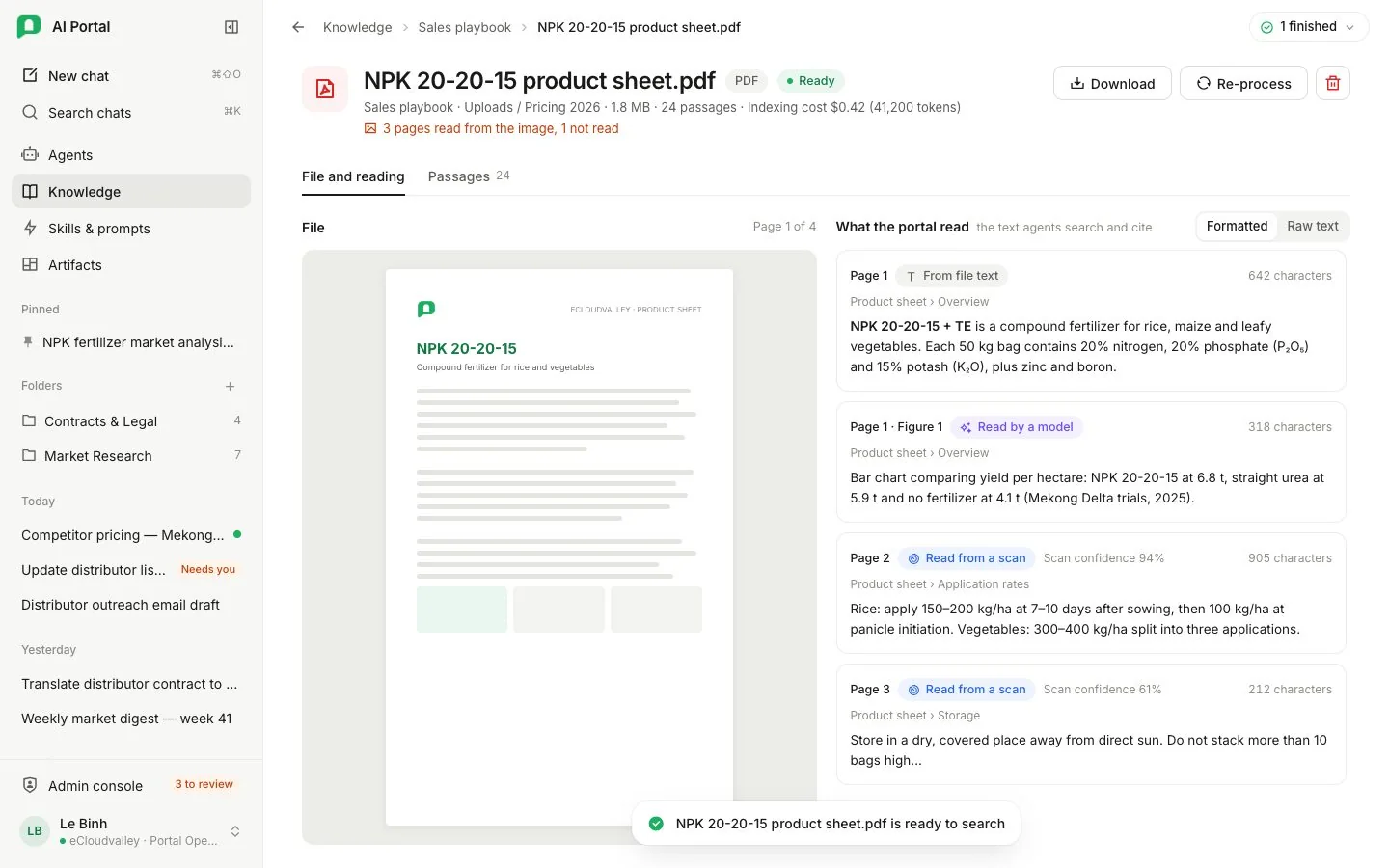
- 1 How the pages were read, and any page not read.
- 2 Download.
- 3 Re-process — for people who may change the base.
- 4 File and reading — the file beside the words read off it.
- 5 Passages — what retrieval matches against.
- 6 From file text.
- 7 Read by a model.
- 8 Read from a scan (OCR), with its confidence.
- File and reading shows the file as it was uploaded beside the words the portal read off it, each part marked as from file text, read by OCR or read by a model.
- Passages lists the passages retrieval matches against, once the document is indexed.
- The file uses the same viewer as artifacts, and unsupported formats remain available to download.
- Preview follows the knowledge base’s read permissions, including documents uploaded by somebody else. Download sits in the header on both tabs, and a file that arrived from SharePoint also links back to the folder it came from.
Re-process a document
For someone who may change the base, the header carries Re-process. It opens with that one file’s Reading and Search, each on Default (the source’s setting) unless the file has its own.
- Re-process in the dialog saves any change and reads the file again, billed to your department; pages already read are not paid for twice.
- The same dialog opens from the panel a failed or stopped run leaves.
- While a run is going, an Indexing panel offers Stop indexing. A stopped run keeps nothing; a previous version, if there was one, stays searchable.
- A file that cannot be indexed — a damaged PDF, or a file set to semantic search when no embedding model is assigned — fails at once with the reason. A passing problem is retried, and the panel says it is trying again.