

Sharing and your library
Everything you create starts private. How to share an agent, skill, prompt or knowledge base, and how your library fills up.
Employees How-to 4 min read
Everything you create starts private: an agent, a skill, a prompt and a knowledge base all reach nobody but you until you say otherwise.
Share something
Widening to a department, a group, a person or everyone is a choice you make in Who can use it (or the share sheet) once the thing is written.
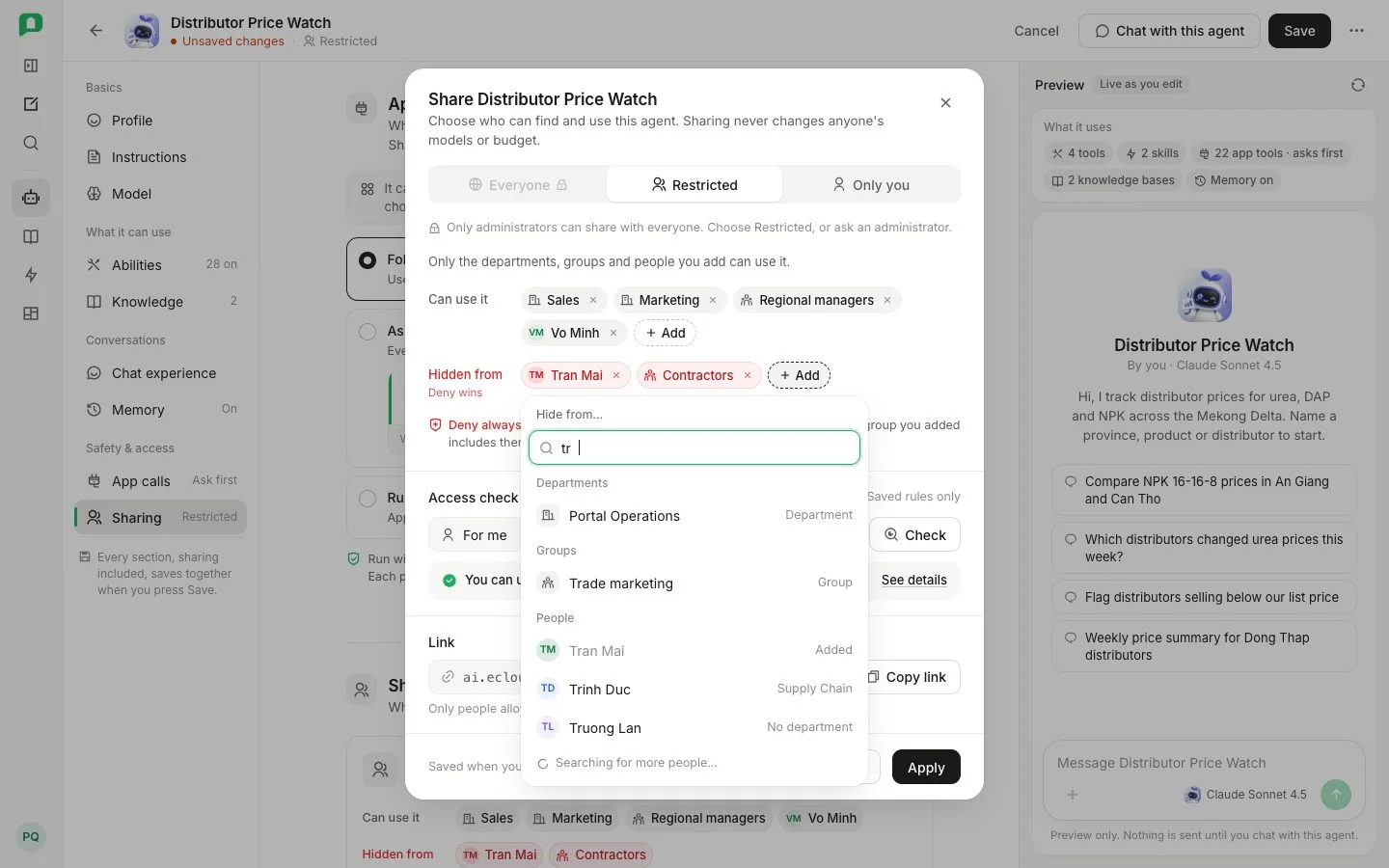
- 1 Everyone — only administrators can share with everyone.
- 2 Restricted — named departments, groups and people.
- 3 Only you.
- 4 Can use it — who is allowed.
- 5 Hidden from — deny wins, even over a group you added.
- 6 Search the whole directory: departments, groups, people.
- 7 Access check — what someone can actually use.
- 8 Apply.
- Trying Everyone and switching back to Restricted keeps the people you had picked.
- Only administrators can share with everyone, and the option says so.
- The people search looks through the whole directory, and every rule shows a name, or Unknown person if that person has left.
- Sharing never changes anyone’s models or budget.
How your library fills up
A share from somebody who administers that resource type lands in your library at once; a peer’s share waits under Shared with me until you add it. You may remove either, a removal beats a later push, and a removed resource stays readable by its link.
| On… | The card’s More menu offers |
|---|---|
| Somebody else’s resource | Remove from my library — takes it off your shelf, changes nothing for anyone else, and offers Undo. |
| Something you made or administer | Delete skill, Delete prompt or Archive agent, which asks first. |
The same My library / Shared with me switch appears on Knowledge and Artifacts.