

Add a SharePoint folder
Keep a knowledge base in step with SharePoint. Pick folders once, choose how they're read and how often they sync, and the portal pulls in only what changed each time.
Before you start
- An administrator has switched the SharePoint tool on and granted the site — only granted sites are listed. Add SharePoint folder appears only then.
- You can change this knowledge base, and you hold the knowledge permission (the Knowledge Curator role carries it). Adding or removing a site stays with whoever manages tools.
- Search by meaning needs an embedding model assigned to document search. Ask an administrator if you’re not sure.
Add the folder
-
Open Sources
Open the knowledge base, go to Sources and select Add SharePoint folder. The dialog has two steps, plus an optional third.
-
Choose folders
Pick as many folders as you want; each becomes a source of its own. Only the sites the Microsoft 365 administrator granted the portal’s application are listed, by name.
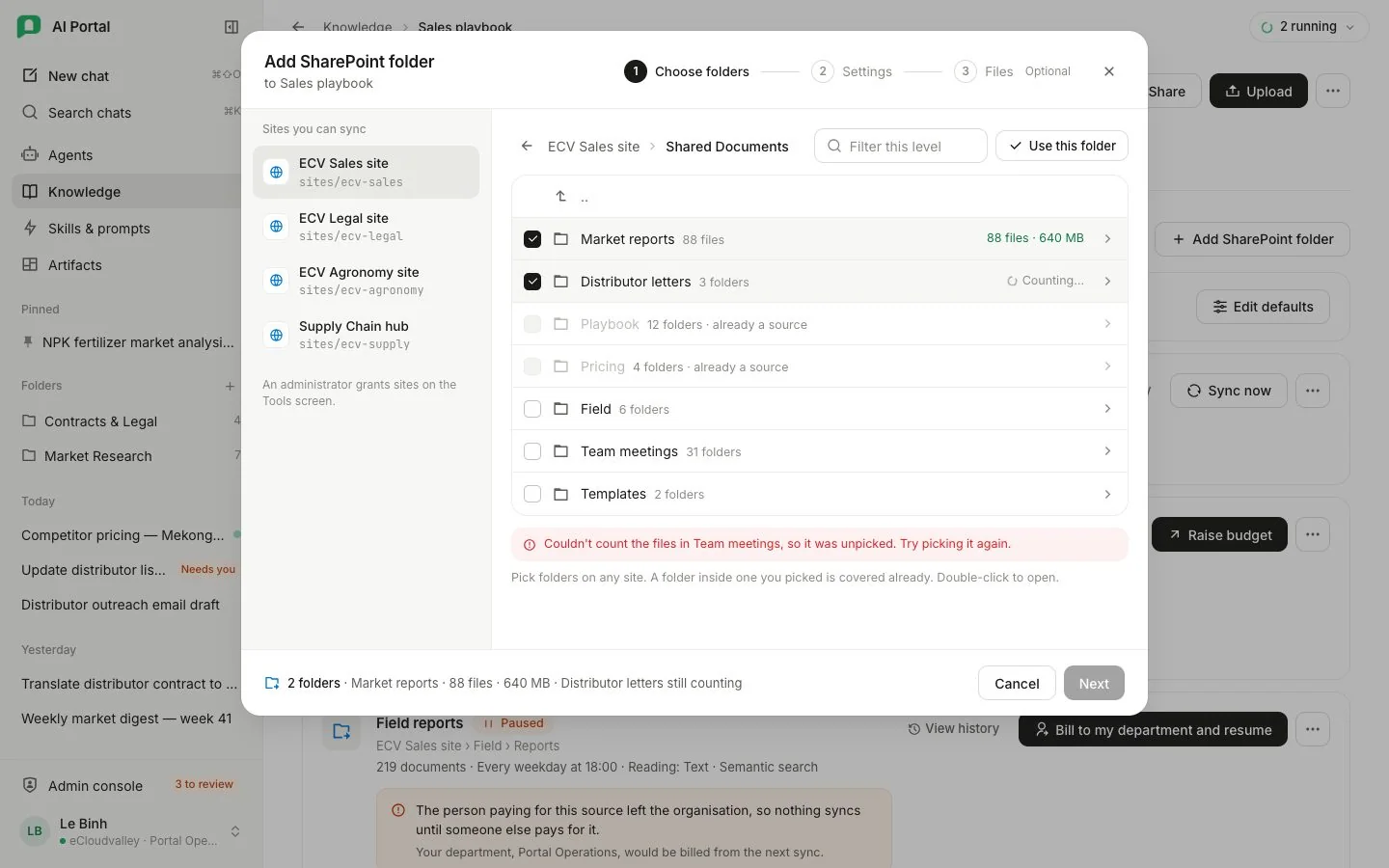
- 1 Three steps — folders, settings, then files (optional).
- 2 Where you are — the site and folder; .. goes up a level.
- 3 Use this folder — picks the folder you’re standing in.
- 4 Pick folders — the box on a row picks it; its name opens it.
- 5 Already a source — folders under a picked one are covered too.
- 6 Couldn’t count — the folder is unpicked; pick it again.
- 7 The total — files and size of everything picked.
- 8 Next — offered once every folder has been counted.
- The box on a row picks that folder, its name opens it (or double-click), and Use this folder picks the folder you are standing in. The
..row at the top of a folder goes back up one level. - What you picked stays picked while you move between folders and between sites.
- Picking a folder drops any folder below it you picked earlier, and the folders below a picked one cannot be picked, because the folder above already syncs them.
- The filter box narrows the folders at the current level by name.
- Reading the sites and their folders needs the knowledge permission.
- The footer counts the picked folders’ files and size, and estimates a time range for their first sync, before Next is offered.
-
Choose how it's read and when it syncs
The second step names the source and sets how it is read and when. With several folders picked there is no name to set, and each source takes its folder’s name. These settings are the default for every file in the folders, and the step repeats the time estimate for the reading you choose.
Setting Choices Reading Text takes the text layer and reads scanned pages with OCR, for free. Text + figures adds a description of each picture and chart, one model call per page with a picture. Full rewrite has a model write every page out as Markdown, one call per page; it makes a file easier to check against its reading and does not improve search. Semantic search On: agents find the files by meaning as well as by word, and every passage is embedded on your department’s budget. Off: they find files only by the words they contain, and nothing is embedded. Sync By hand only, every day, on weekdays or once a week, at a time read in your own time zone. The line under it gives the date and time of the next run. -
Set files one by one (optional)
Set per file opens a third step listing the folders’ files, up to 500 from each, where any file can take its own reading or semantic search. A file left on Source follows the folder.
-
Add and sync
Add and sync creates the sources one by one and starts each first sync at once. If one cannot be created, the dialog says how many were added and keeps the rest picked to try again.
Each later run asks Microsoft only for what changed since the previous one, deletions included. A file renamed upstream keeps its passages and costs nothing. A format the portal cannot read is counted as skipped rather than failed.
A source created before schedules carried a time zone runs in UTC, and its settings say so. Use my time zone under the schedule moves it to yours at the same clock time.
Check the source
Each folder now has its own card under Sources, led by one state.
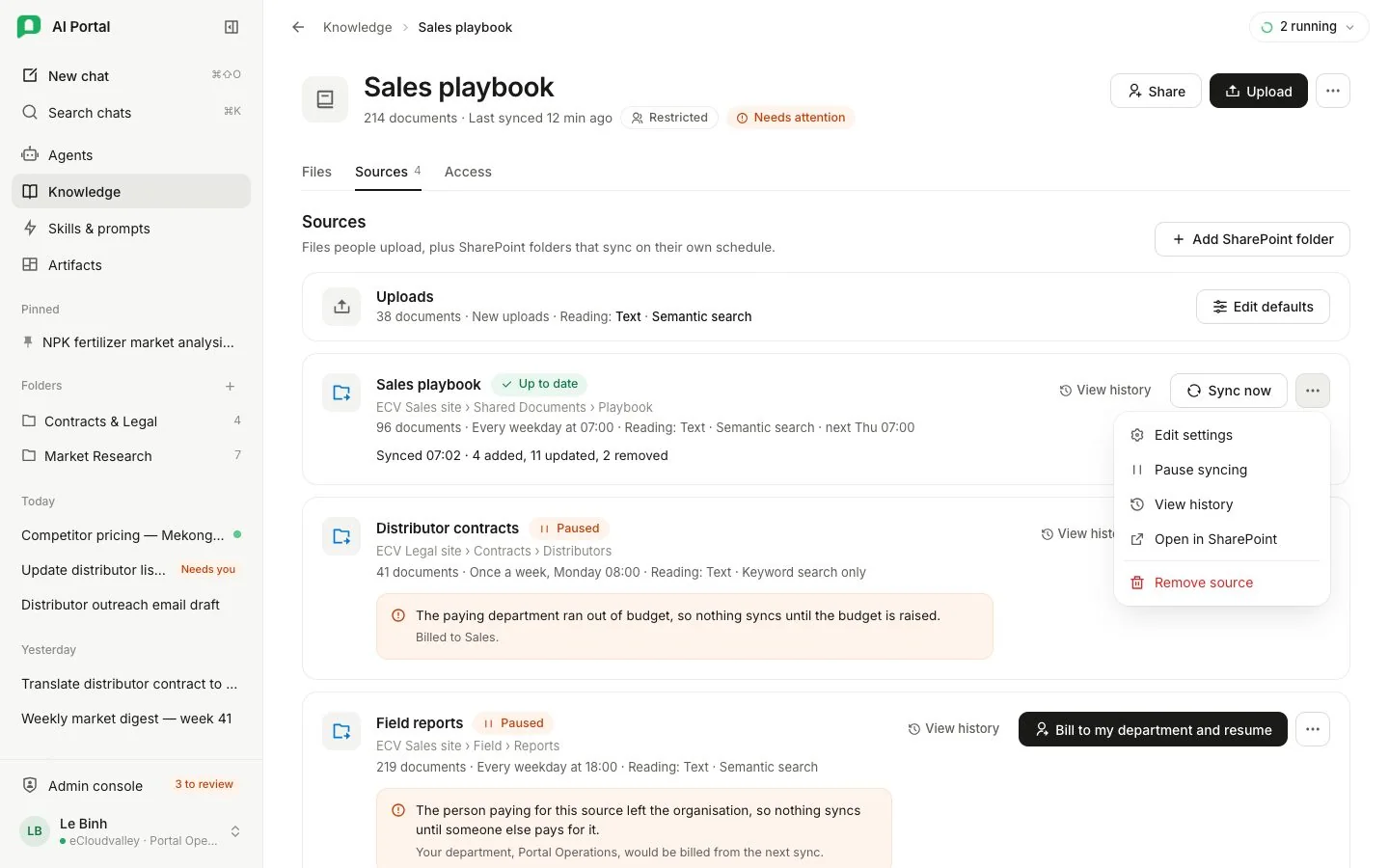
- 1 Add SharePoint folder.
- 2 Edit defaults — how uploads are read.
- 3 Its state — here, Up to date.
- 4 Where and when — folder, schedule, reading and next run.
- 5 The last sync — what it added, updated and removed.
- 6 Sync now.
- 7 Paused — out of service until fixed.
- 8 Why — the reason sits beside the fix.
- 9 Bill to my department and resume — take a source over.
Source states
| State | Meaning |
|---|---|
| Waiting | No run has started yet. |
| Syncing | A run is pulling files, and the card counts the files handled so far. |
| Indexing | The run finished and documents are still being read, with a bar showing how many of the total are done. |
| Up to date | The last run finished and nothing is waiting. |
| Needs attention | Some files could not be read. See which lists them. |
| Paused | The source is out of service. The reason sits beside the action that fixes it, and Sync now waits until it is resumed. |
| Failed | The last run broke. View history shows why. |
- Pause stops a source; a run already going stops at its next file. Resume puts it back and starts a sync. A source paused because its budget ran out resumes the same way once the budget allows.
- View history opens the recent runs in a side panel, each with its duration and what it added, updated, removed, skipped or failed. Opening a run shows its error, and a run with failures lists the documents that failed, each opening the document.
- Remove source takes it out for good.
The activity tray
Uploads and SharePoint syncs you pay for report in the activity tray, on every screen of the portal. A sync keeps running on the server when you leave the page or close the browser, and the tray reads its state from the server, so a reload or another device shows the same rows. A finished sync stays in the tray with what it changed until Clear finished. Collapsed, the tray is one pill that counts what is running (for example 2 running) and turns green once something has finished.
Who can read and who pays
Live SharePoint access is separate: documents pulled into a knowledge base come from the organisation’s own credential and need no connection of yours. Setup for IT is in SharePoint.
Questions
A file was renamed in SharePoint. Do we pay again?
No. A renamed file keeps its passages and costs nothing. A format the portal can’t read is counted as skipped, not failed.
How do I stop syncing a folder?
Use Pause syncing from the source’s menu — a running sync stops at its next file. Resume syncing puts it back and starts a sync. Remove source takes it out for good.
The site I need isn't listed
Only sites an administrator granted to the portal appear. Ask them to add it on the Tools screen.