

Knowledge bases
Collections of documents agents retrieve from and cite — finding them, creating one and deciding who may read it.
A knowledge baseKnowledge baseKho tri thứcA collection of documents agents can search and cite. Files are uploaded or synced from SharePoint, and each knowledge base has its own sharing rules.Open in glossary is a collection of documents agents retrieve from and cite. It carries its own rules about who may read it, and an agent bound to it never widens them.
The Knowledge screen
Knowledge in the rail lists every knowledge base you can reach.
- Three tiles count what you reach: Knowledge bases, with how many are open to everyone; Documents, with how many failed to index; and Ingest spend, what reading those documents has cost.
- A row names one knowledge base, how many documents it holds and when it was last indexed. Red text on a row means something is waiting for somebody: documents that failed to index, or a source that stopped.
- The badge on the right says who reaches it, and a Restricted base names its departments and groups when you rest the pointer on it.
- My library and Shared with me (N) above the list switch between the bases you own or added and the ones you can read and have not added; Add to library puts one in your library. The search box and the Shared with filter narrow either list.
Create a knowledge base
-
Add knowledge base
Choose Add knowledge base and give it a name.
-
Choose who may read it
The whole organisation, named departments, groups and people, or nobody but you. A new base is private until you widen it.
-
Add documents
Upload files, or add a SharePoint folder. See Files, folders and documents and Add a SharePoint folder.
Who can read it
The Who can read this section on the base’s Access tab carries the same editor, and changes the answer once you save. Share in the header opens it as a sheet.
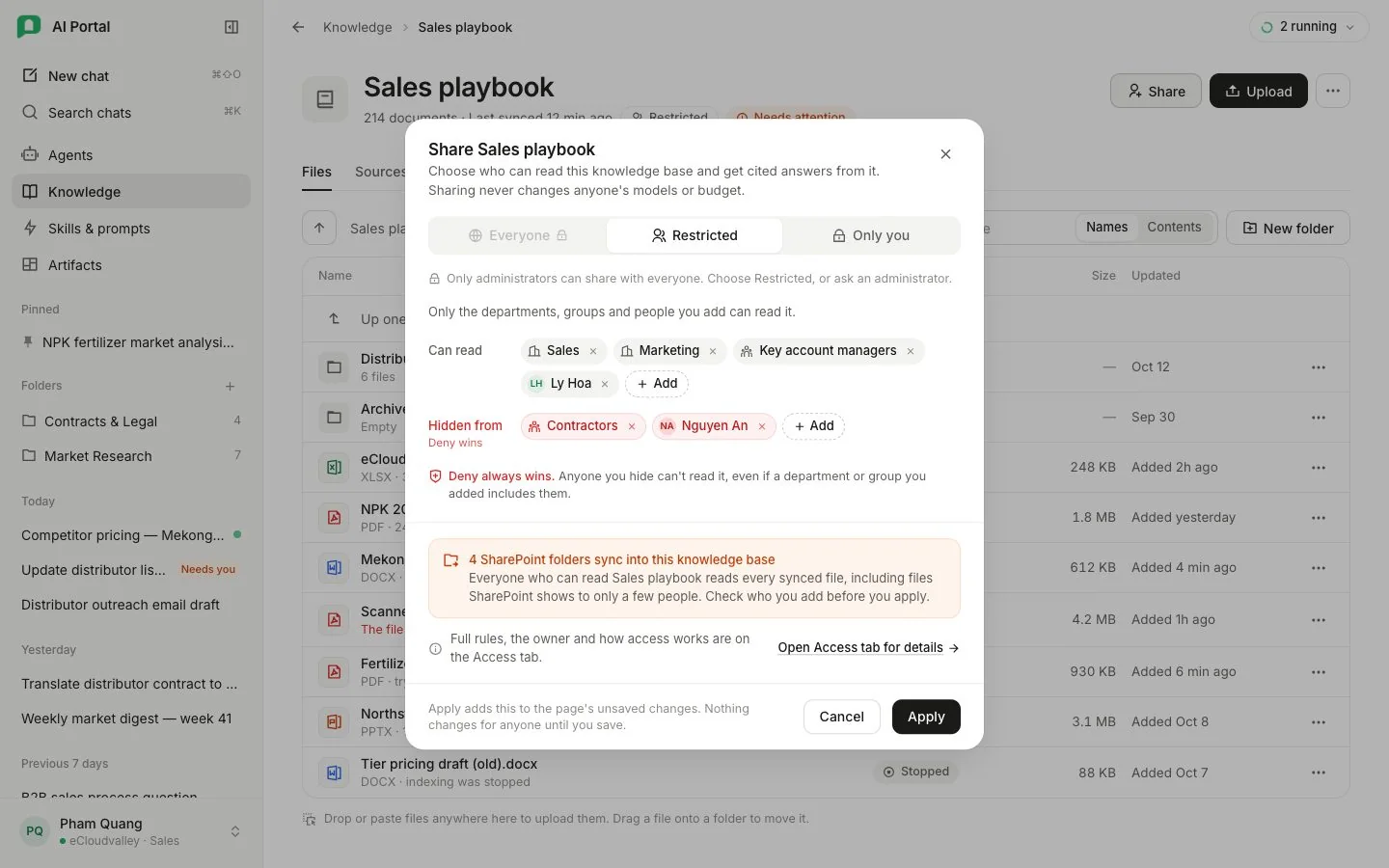
- 1 Everyone, Restricted or Only you.
- 2 Can read — departments, groups and people.
- 3 Hidden from — deny wins.
- 4 SharePoint folders — everyone who can read the base reads every synced file.
- 5 Open Access tab for the full rules and the owner.
- 6 Apply — nothing changes for anyone until you save.
- Only you reaches the base’s owner, so a base the organisation was seeded with, rather than one somebody created, does not offer it.
- Sharing never changes anyone’s models or budget.
Remove or delete
The More menu at the end of a row takes a base out again:
- Remove from my library on a base somebody else owns (with Undo). Removing one changes nothing for anybody else.
- Delete for everyone on one you own or curate. Deleting takes the base and every document in it away for everybody.
Who pays
Everything an upload spends is billed to the uploader’s department and counts against its budget. A SharePoint source is billed to the department of whoever created it — see Who can read and who pays.