

Approvals and questions
When an agent wants to change something in a connected app, it stops and asks you first. When a request is ambiguous, it asks you to clarify. Nothing changes until you decide.
Approve or deny an app action
Before you start
- You’ve signed in to the app once from Settings › Connected apps, so the agent acts as you. See Connected apps.
- The app is set to Ask before each action — the usual setting for apps that can make changes.
What you’ll see
The reply pauses and an Agent needs you card appears above the message box. The chat in the rail shows Needs you (an orange dot), so you can find it later.
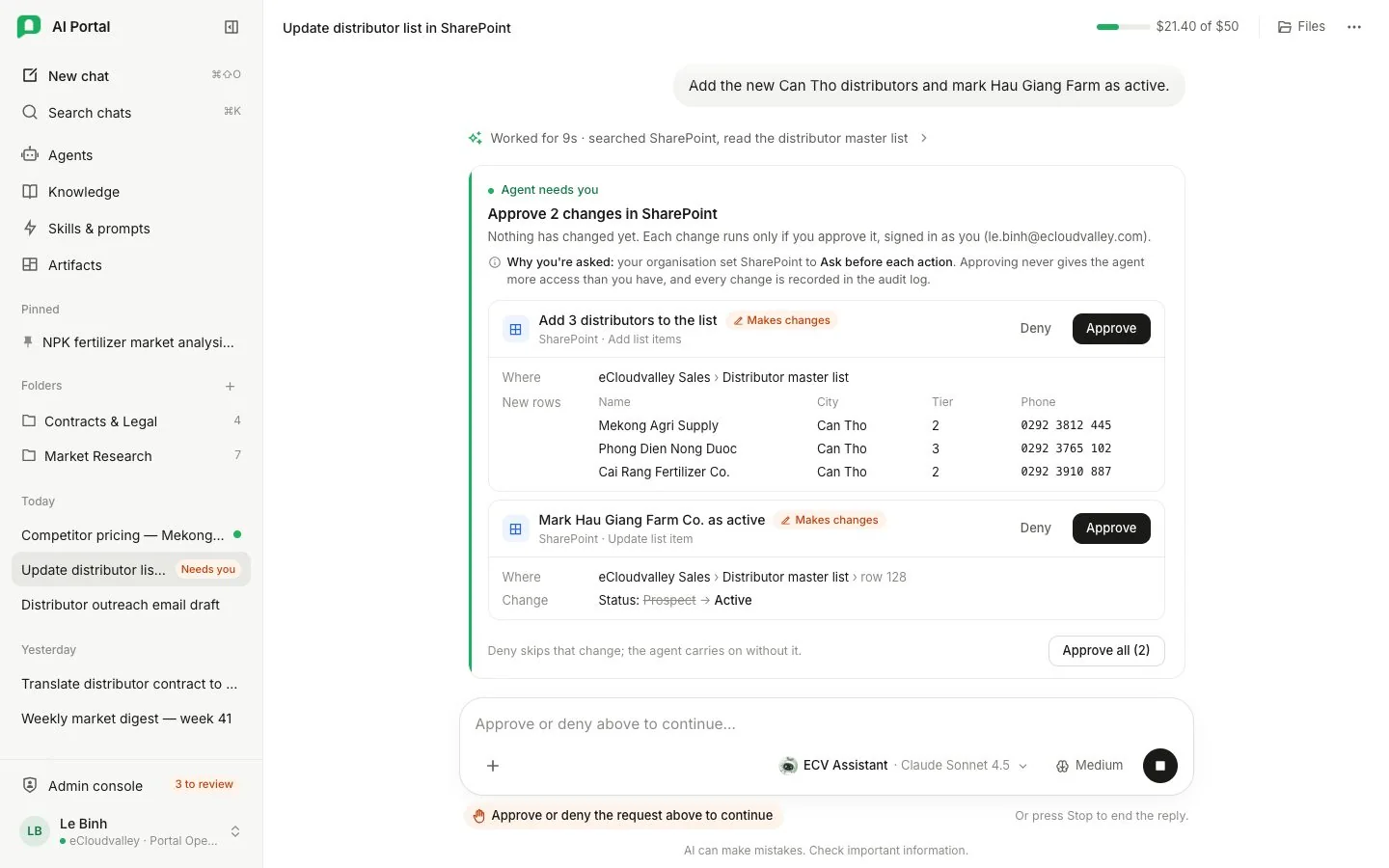
- 1 Why you’re asked — the app’s setting and who you act as.
- 2 The change in plain words, marked Makes changes.
- 3 Exactly what will be written — where, and every new value.
- 4 Approve or Deny each change separately.
- 5 Approve all — when every change is right.
The card names the tool, the application it reaches and every argument the call carries, and marks a tool that writes. Reading a record and changing it reach this card the same way, and only the second one changes anything.
Decide
-
Read the change
Check Where and the new values. If anything looks wrong, deny it — you can tell the agent what to fix next.
-
Approve or deny each change
Approved changes run right away, signed in as you. Denied ones are skipped and the agent carries on without them. Use Approve all when every change is right.
-
Let the reply continue
The agent picks up where it stopped and tells you what it did. Every decision is kept in the audit log.
Why wasn't I asked this time?
How each call is confirmed is set per agent under App calls: Follow the organisation, Ask before each call, or Run without asking (YOLO). A tool can also be marked Always ask. YOLORun without asking (YOLO)Run without asking (YOLO)A connected-app setting that skips the approval prompt for each action. It never bypasses permissions, sign-in scope, policy or the audit log.Open in glossary skips the confirmation only — never permissions, sign-in scopes, policy or audit. See Building an agent and, for administrators, Applications.
What happens if I close the tab?
Nothing is lost. The step the question is about says it is waiting for you rather than turning, and the question survives the tab: closing it and coming back shows the same card, because the pause is on the record.
Answer the agent’s questions
An ambiguous request makes the agent ask. A clarificationClarificationCâu hỏi làm rõA question the agent asks you in the middle of a turn, with suggested answers and a box to type your own. Answering continues the same turn.Open in glossary can hold one or more questions, and answering it resumes the same task.
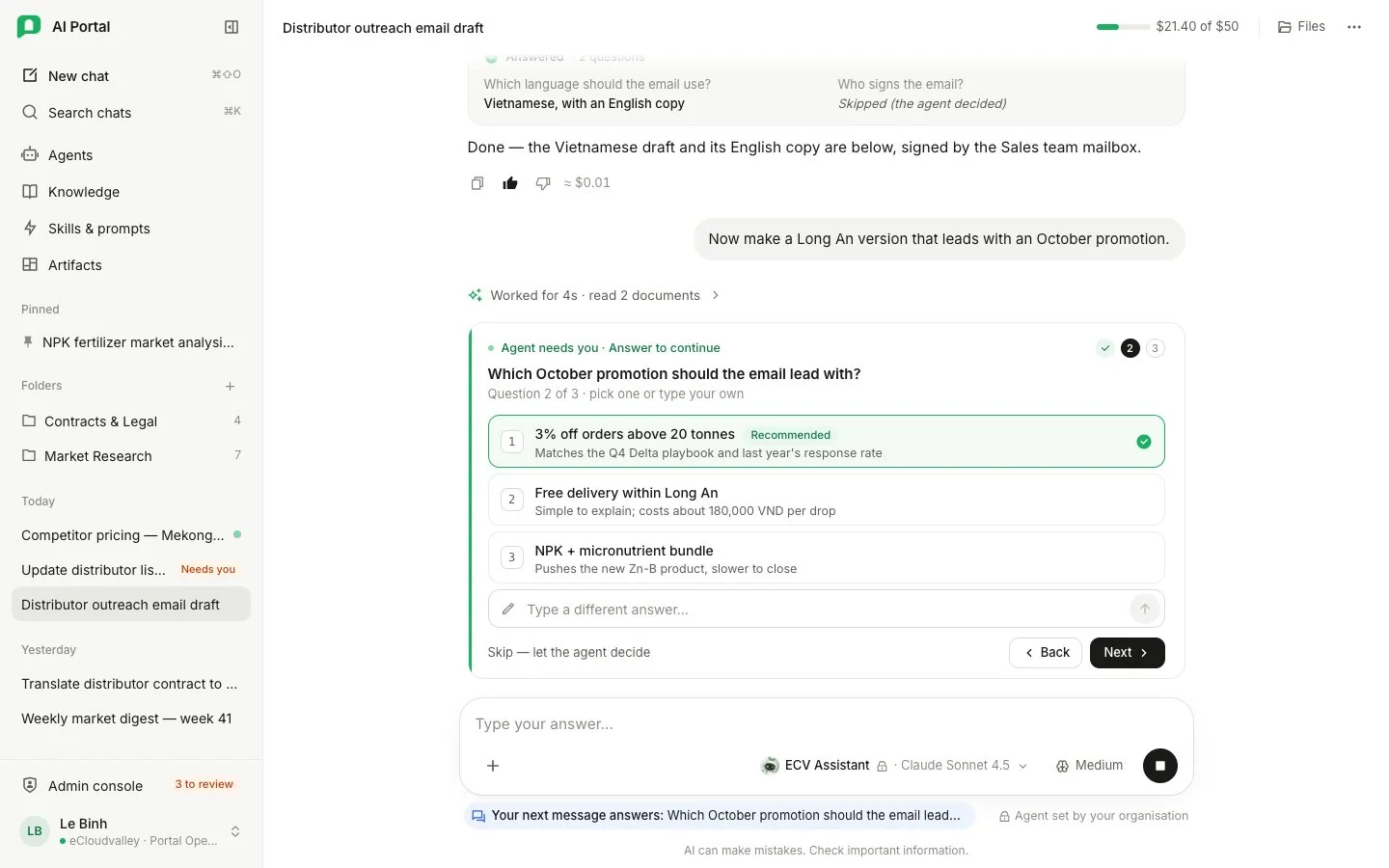
- 1 The marks at the top — jump to any question; answered ones are ticked.
- 2 Suggested answers — click one, or press its number key.
- 3 Type a different answer of your own.
- 4 Skip — let the agent decide.
- 5 Back and Next — move between questions.
- 6 Typing in the message box answers the question the card is showing.
-
Pick or type an answer
Each question offers answers to pick from, a box to type your own and Skip (let the agent decide). A number key picks the answer it labels.
-
Move through the questions
The card shows one question at a time. Picking an answer moves to the next open question, and Back, Next or the marks at the top go to any of them.
-
Review and send
Once every question has an answer, the card lists them with Change beside each. Nothing is sent until you press Send answers, and the agent then resumes the same task. A single question is sent as soon as you pick its answer.
After the reply, the card stays in the conversation as a record of what was asked and what you answered.