

Connected apps
The apps your agents may use on your behalf — connecting, choosing which tools they may use, and disconnecting.
Open Settings › Connected apps from your name at the foot of the rail. The page groups the apps you can reach: Needs your sign-in, Ready to use, and a collapsed Unavailable for apps switched off or not set up yet. Each card describes the app in a sentence. Nobody else sees or changes your connections.
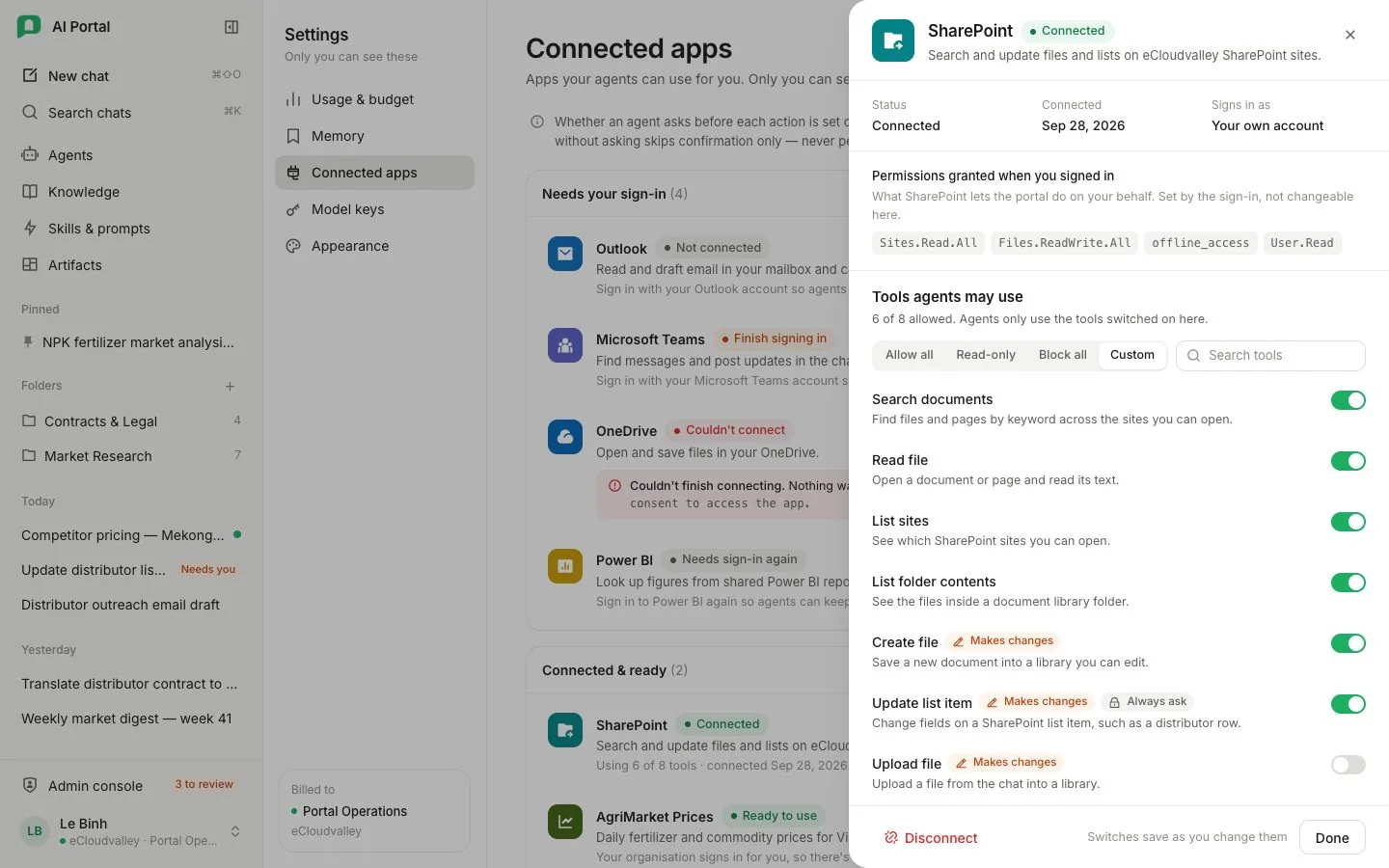
- 1 Needs your sign-in — apps that act as you.
- 2 Not connected — Connect opens the provider’s sign-in.
- 3 Couldn’t connect — the reason, and a way to retry.
- 4 Needs sign-in again — Reconnect.
- 5 Status, when you connected, and who it signs in as.
- 6 Permissions you granted when you signed in.
- 7 Allow all, Read-only, Block all.
- 8 Makes changes and Always ask — per tool.
- 9 Disconnect.
Two kinds of app
| The app runs on | What you do |
|---|---|
| A credential your organisation holds | Nothing. Its card reads Available and Ready to use, with Manage tools to switch off tools an agent may otherwise use for you. |
| Each person’s own sign-in | Connect opens the provider’s sign-in, or Not ready yet shows while your administrator is still setting it up. |
Connect an app
-
Choose Connect
On a card under Needs your sign-in, choose Connect and sign in at the provider.
-
Come back to the portal
A banner at the top says whether it worked. A sign-in that expired or failed offers Reconnect.
-
Check what agents may use
Once connected, the card says how many of its tools agents may use; the permissions you granted are under Details.
Choose which tools agents may use
Manage tools lists each tool with what it does, whether it makes changes and whether it asks you before each use, plus Allow all, Read-only and Block all. A switch saves as you flip it; if saving fails it moves back and says why.
Documents pulled into a knowledge base from SharePoint come from the organisation’s own credential and need no connection of yours — see Add a SharePoint folder.
Disconnect
Disconnect asks first, then withdraws what the portal holds, and agents stop using the app for you until you connect again. Anything already done with it stays done and is in the audit log, and connecting again starts a new sign-in.