

Ask and read answers
Pick an agent, write your message and send it. The agent works step by step and shows you only its final answer, with every step one click away.
Ask a question
-
Choose who you're asking
Open the picker in the message box and choose an agent. Each one has its own instructions, knowledge and tools — switching changes all three, and resets the model and thinking effort to that agent’s defaults.
-
Write your message
Say what you want and what a good answer looks like. Type / to add a skill or a prompt, or @ to hand the message to another agent.
-
Send it
Press Enter. The reply streams in while the agent works, and you can keep reading or scroll away — the chat holds your place.
The message box, piece by piece
The home screen is the greeting, the message box and up to four ways to start. The conversation view uses the same message box. Everything that decides how your next message is answered sits in its toolbar.
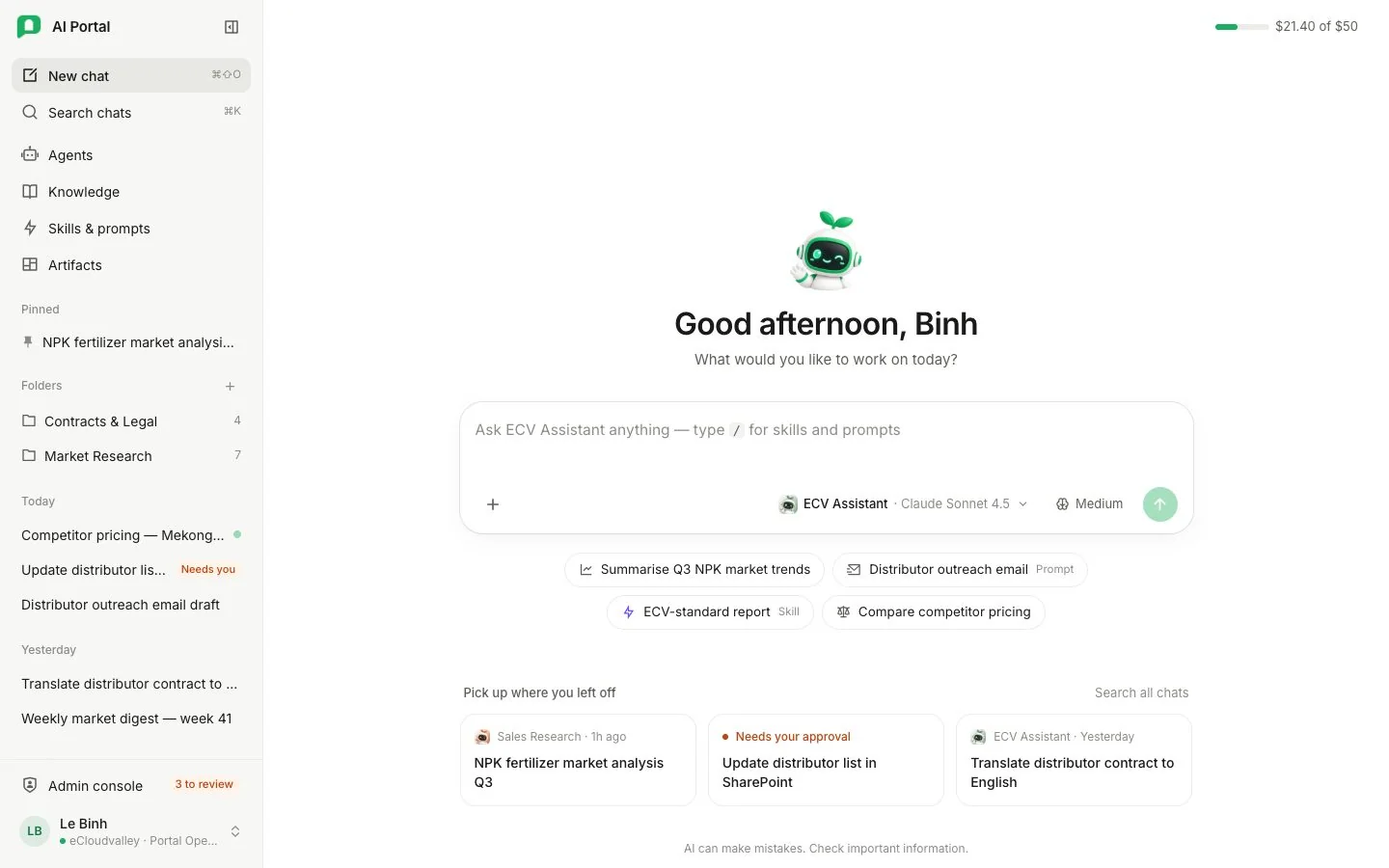
- 1 Add — attach files, or open the Prompt library.
- 2 Message — @ switches agent, / opens skills and prompts.
- 3 Agent — its instruction, the knowledge it may read and the tools it may call.
- 4 Model — every chat model the organisation catalogued, minus what your department switched off.
- 5 Thinking — Off, Low, Medium or High; greyed out when the model can’t reason.
- 6 Send — Enter also sends.
- Enter sends. On a phone or tablet, Enter starts a new line and the send button sends.
- On a narrow screen the pickers show only the agent’s picture, the model’s provider mark and the thinking icon; each still opens its menu and names the current choice there.
- Under the message box, the agent’s own conversation starters are offered when it has any; otherwise the prompts and skills you may use. A starter or a prompt fills the message box, and a skill is added to your next message. Nothing is sent until you send it.
- An agent with a welcome message shows it under the greeting. Your earlier conversations are in the rail.
Model and thinking effort are covered in Models and thinking effort; attachments in Files and artifacts in chat.
Using skills
Choose one or more skillsSkillSkillA reusable set of instructions an agent loads when a task calls for it, such as writing a report in your company's format.Open in glossary from /, or start a message with their names: /market-research /fact-check Research this market. Each selected skill applies to that turn. Its activation appears above the answer after the server accepts the message. Removing a chip removes that selection from the next send. See Skills and prompts.
While the agent works
You don’t have to wait. Type while it works: plain text goes to the reply that is running, and the agent reads it after it finishes its current step. Once you type, Send update appears beside a smaller Stop.
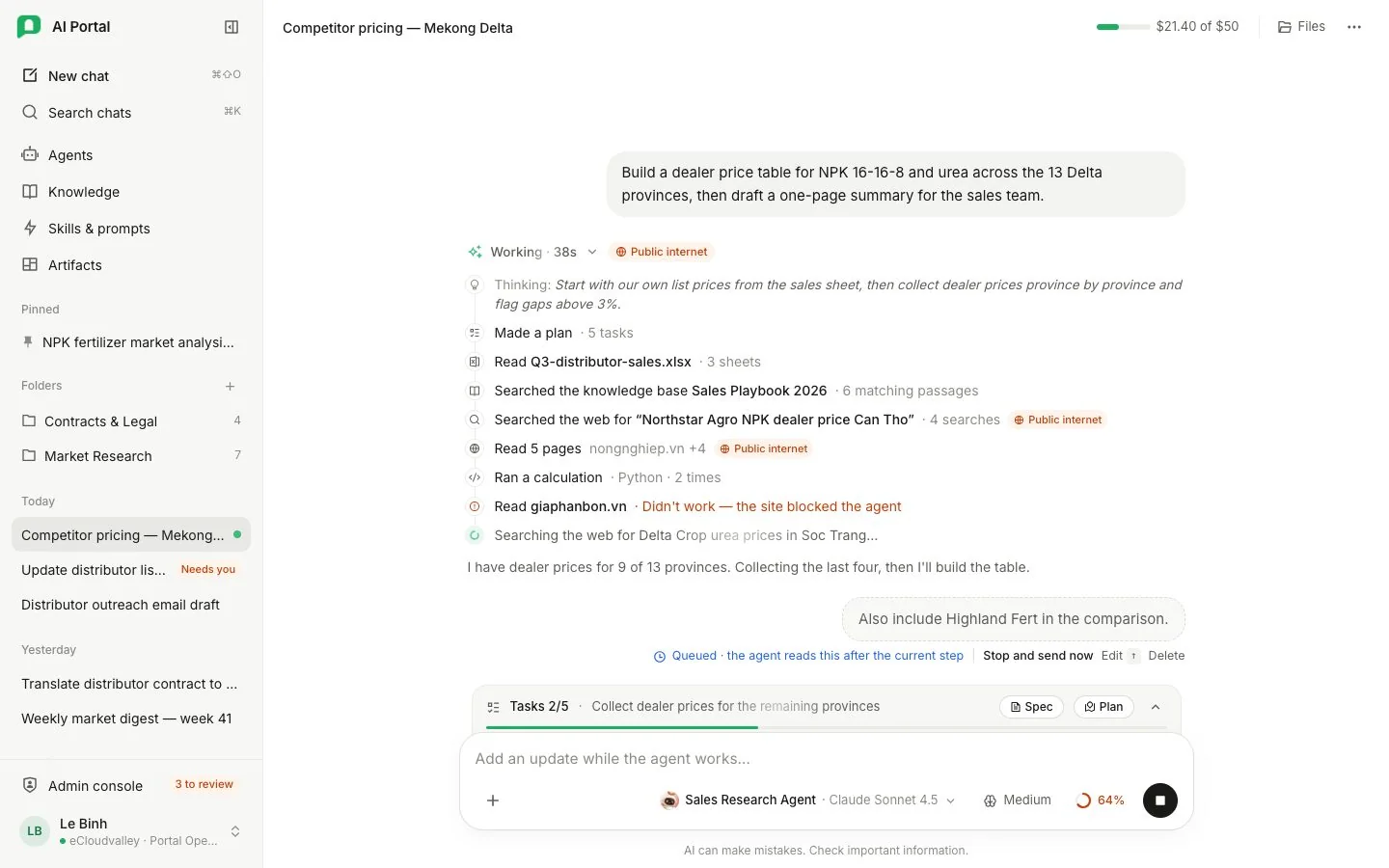
- 1 Working — live steps, each a tool call, a read or a thinking summary.
- 2 Your update — faded and queued until the agent reads it.
- 3 Stop and send now, Edit or Delete the waiting update.
- 4 Task list — tasks done and the one in progress.
- 5 Spec and Plan — what it understood and how it intends to do it.
- 6 Conversation memory — how much of this chat the model can still see.
- Your update shows Waiting for the agent and stays faded until the agent reads it, then moves above the next part of the reply.
- Stop and send now under a waiting update stops the reply and sends the update as your next message — for a correction that shouldn’t wait.
- Anything you send while it waits is added to it on a new line.
- Until the agent reads it you can delete it, or edit it back into the message box; the up arrow in an empty message box does the same.
- An update the reply finished without reading shows Not read: the reply finished first with Send as new message.
- When the agent reads an update after it had already written an answer, that answer folds away under Earlier draft, replaced by your update, and the reply keeps one set of actions under its final answer.
- A file, or a different model, effort, skill or agent, waits until the reply finishes; the send arrow stays disabled until then.
- A reply waiting on a question takes your typed text as the answer to that question.
The chat follows new content while you are at the bottom. Scroll up to read earlier messages and it holds your place. Sending a message scrolls back down to it. Scroll back down or use Scroll to bottom to resume following.
The task list
When the agent takes on a job with several parts, a bar above the message box shows its task list: how many tasks are done and the one it is working on. Click the bar to see every task. Spec opens what the agent understood you to want, and Plan opens how it intends to do it, when it wrote them. The bar stays while a task is unfinished, so asking the agent to carry on in a later message picks the same list up. It goes away once every task is done and the reply has finished.
Read the answer
Only the final response renders as the answer. The line above it, such as Thought for a few seconds or Ran code, opens into everything else the agent did.
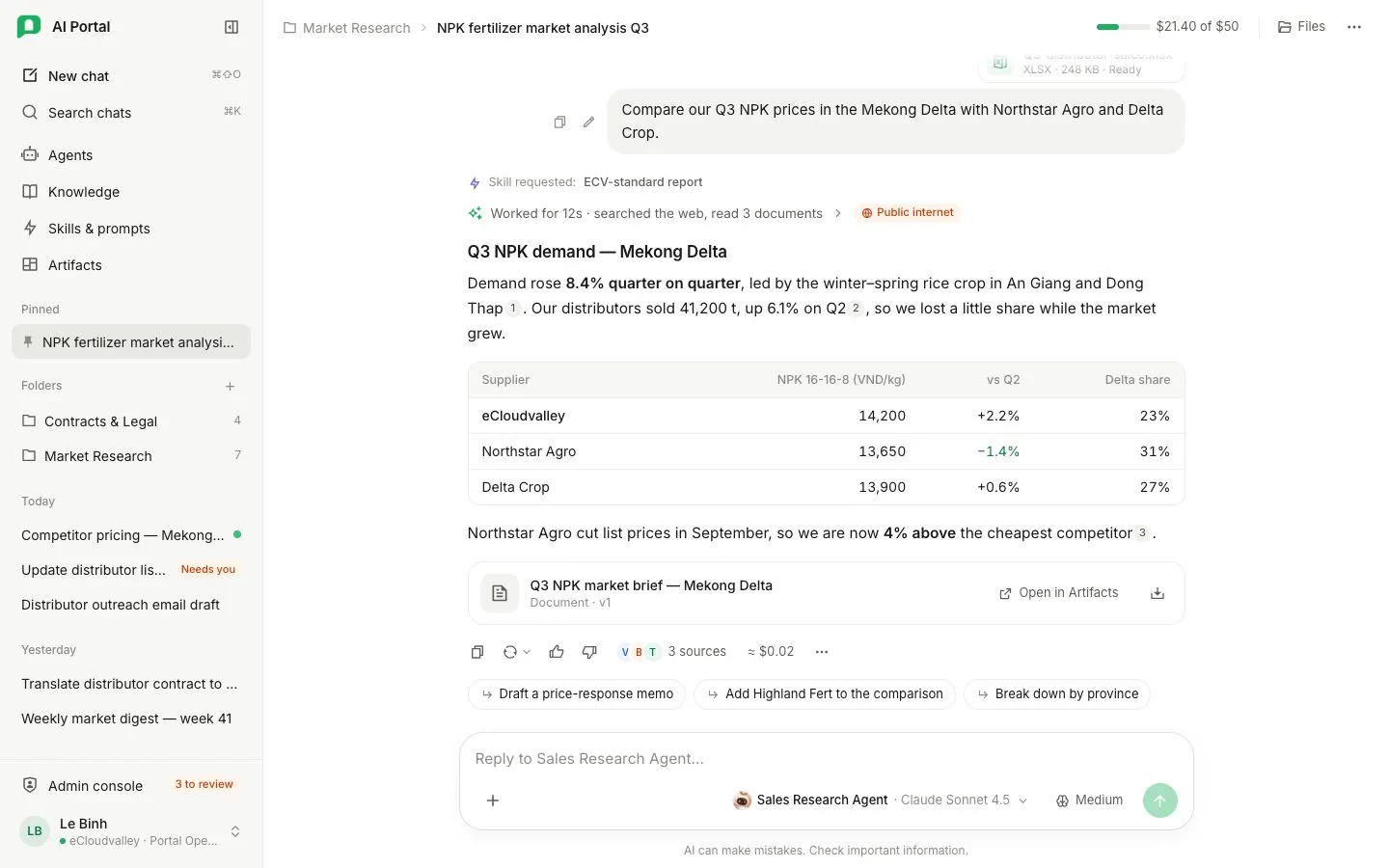
- 1 Skill — which skill shaped this answer, if you picked one.
- 2 Activity line — what the agent did. Open it to see every step.
- 3 Public internet — a step left your AWS account to reach the web.
- 4 The answer — only the final response; numbers cite their source.
- 5 Copy and rate — ratings are saved; thumbs-down asks what went wrong.
- 6 Sources — the passages the answer rested on.
- 7 Cost — roughly what the reply cost, over every model call.
- 8 Follow-ups — one click sends it with the same settings.
- The header names the conversation and the folder it is filed in.
- The copy button shows a tick once the reply is on your clipboard.
- The thumbs up and down rate the reply and are saved, so they are still there when you come back; clicking the same thumb again takes the rating off. A thumbs-down asks what went wrong (wrong, incomplete, unsafe or other) and lets you add a note; both are optional.
- The cost beside the buttons is roughly what the reply cost, summed over every model callModel callLệnh gọi mô hìnhOne request to a model. A single turn can make many, and each one is logged with its own cost.Open in glossary it made. Click or tap it for the details.
- After some replies the agent offers up to four follow-up messages as buttons under that reply, where they scroll with the conversation. Clicking one sends it as your next message, with the same agent, model and thinking setting. They belong to the newest reply and go away once you send anything.
Each step, opened
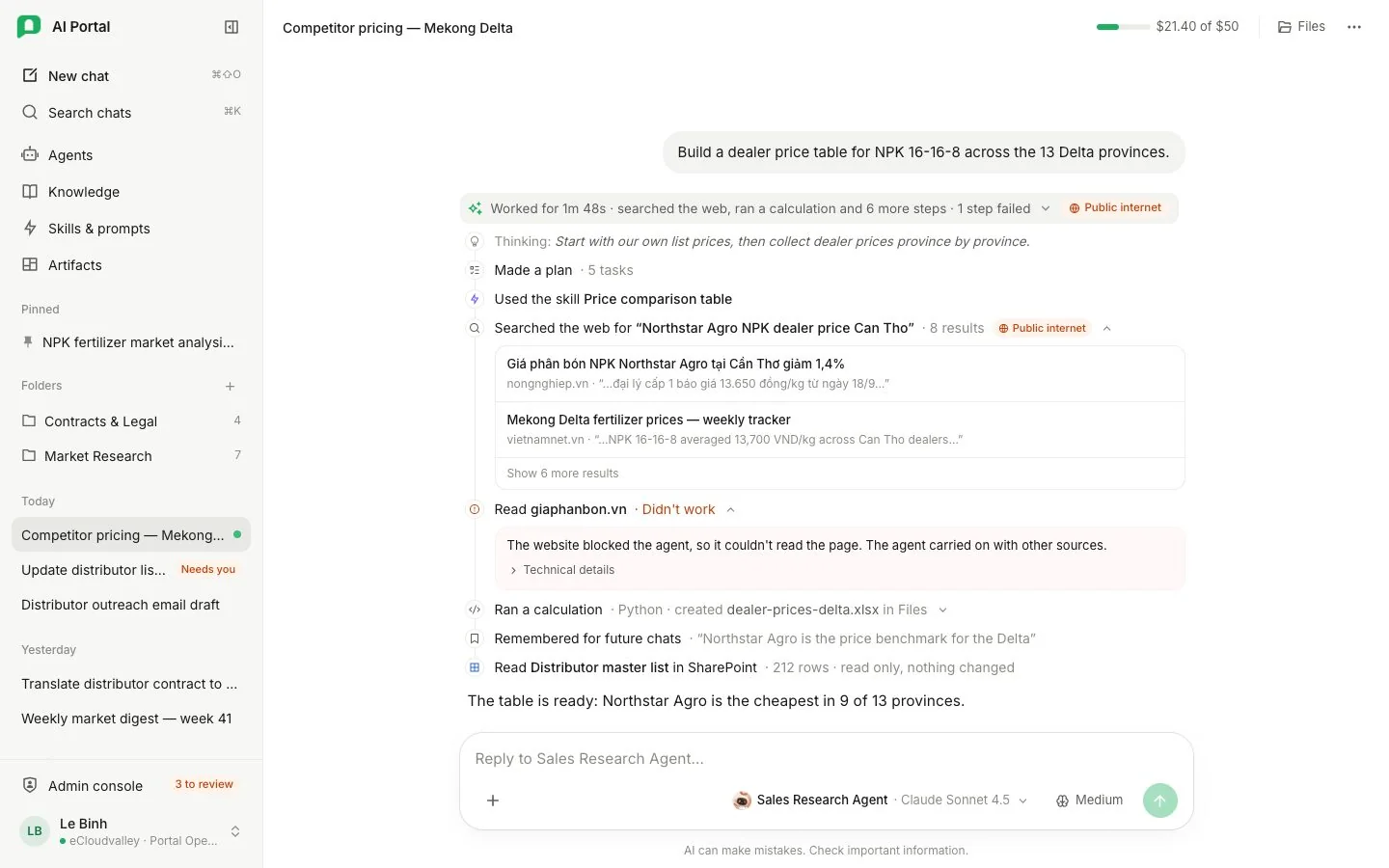
- 1 Thinking — a summary, never raw reasoning.
- 2 A web search — orange Public internet mark, results listed closed.
- 3 A step that didn’t work — and what the agent did instead.
- 4 A code run — the program, what it printed and the files it left.
- 5 Remembered for future chats — a memory saved.
- 6 A read from an app — what it read, and that nothing changed.
Each entry is a step: a tool called, a document read, or a thinking pass summarised inside the runtime. Numbers in square brackets cite the document or page a sentence came from. Opening a step shows what it did, drawn for the kind of work it was:
| Step | What opening it shows |
|---|---|
| Knowledge search | One row per document, with its revision and how many passages came from it. Opening a document lists those passages by what each one says, with the pages they came from on the right. Five show at once and a control asks for the rest. |
| File edit | The lines it removed and the lines it put in their place. |
| Code run | The program, what it printed and the files it left behind. |
| Spending check | The department’s budget beside what has been spent against it. |
| A read | The document, workspace file, web page or saved artifact as text, four thousand characters at a time, with a control that asks for the next four thousand. Headings and tables render as formatted text, and a picture shows as [image]. |
| App tool call | The arguments it was called with and the answer that came back. A call the service refused is marked failed and carries what it said. |
- A step that found several things lists them closed, one line each, with the first line of what was found under the name. Opening one shows that result. A step that found one thing opens with it.
- Steps that repeat fold into one row. An agent that read the same document four times leaves a row saying so, and opening it shows each read.
- A step that reached the public internet carries an orange dot: the call left your AWS account. The browser and the code sandbox the agent uses run inside your account and carry no mark.
Check where an answer came from
-
Open the sources
Select the sources button under the reply (for example 3 sources). Each knowledge base source opens into the passages it quoted, each shortened to its opening and captioned with the page or clause it came from.
-
Click a passage
The document opens over the conversation at the part the portal read off it, with that part tinted. The header names the document and its revision, and opens the uploaded file itself in a new tab.
-
Compare with today's version
The quote taken when the answer was given sits folded above the document, so a document that has been uploaded again since still shows what the answer rested on. When that revision no longer holds the passage, the quote opens by itself and a line beside it says why.
A web result opens its page instead, and a remembered statement belongs to no document and opens nothing. Answers given before this existed list their sources and quote them, but do not open.
Guardrail notices
Your organisation can check what you send, what tools return and what the AI answers. When a rule finds something, a small line appears under the message:
| Notice | What happened |
|---|---|
| Flagged | The finding was recorded for an administrator to review, and nothing was changed. |
| Masked | The value was replaced before the AI read it, or before the answer reached you. Tap the chip to read what happened; in a message you sent from this tab it also shows and hides what you typed. |
| Tool result withheld | A tool returned something the AI was not allowed to read, and the agent carried on without it. |
When a rule blocks your message, the turn ends on a card naming what was blocked, and nothing reached the AI. Remove that part and send again. When a rule stops an answer, what was already shown stays and the card says so. Administrators set these rules in Guardrails; the idea is explained in Guardrails (concept).
Members and admins
- Your thumbs up or down is saved with the reply. Click the same thumb again to take it off.
- The cost counts against your share of your department’s budget. See it add up in Settings › Usage & budget.
- Only people your organisation allows can open someone else’s conversation — and every read is recorded with their name.
- People who can read spend also see the tokens behind the cost: new input, input read from the prompt cache (not counted in the total), output and the number of model calls.
- The model list comes from Admin console › Models, minus any model a department switched off.
- When reviewing conversations you see how many replies in a conversation were rated up and down.
Questions
The reply stopped before it finished
It ends on a card that says why and what to do — for example Continue or Send again. Look up the card in Troubleshooting.
Why is a model greyed out?
It can’t answer yet, and says why: an administrator still needs to connect it, it is starting up, or it has stopped answering and an administrator has been told. See Models and thinking effort.
Can I send while a file is still uploading?
Yes. Send straight away — the agent waits for a document that is still being read.