

Prompt library
Save messages you send often, with blanks to fill in, and drop them into the message box.
A promptPromptPromptA saved message you reuse from the prompt library instead of typing it again.Open in glossary is a message you insert yourself. Some have blanks to fill before they send, and the agent never chooses one.
Use a prompt
- The book icon in the message box (under +) opens the Prompt library.
- Type / in the message box to see prompts and skills together.
- Prompts you may use also appear as starters under the message box when the agent has no starters of its own, marked Prompt.
- On the Prompts tab of Skills & prompts, Use on a card drops it into the message box.
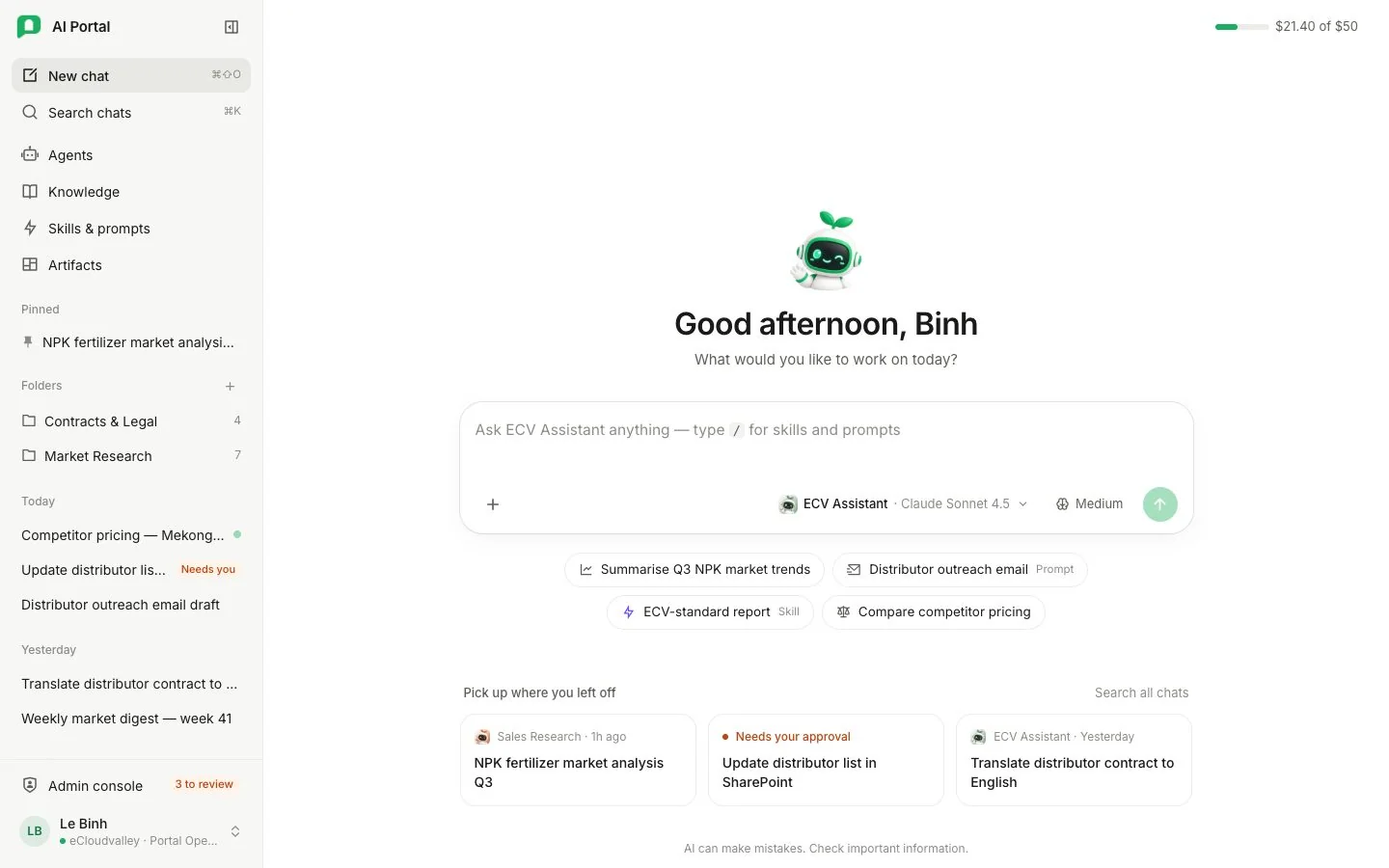
- 1 A prompt — fills the message box.
- 2 A skill — added to your next message.
A prompt card shows how often it was used and its blanks. Pressing a prompt opens it, read-only unless you may change it. A prompt fills the message box; nothing is sent until you send it.
Create a prompt
-
Open New prompt
On the Prompts tab, choose New prompt.
-
Name it and write the message
Fill in a Name, an optional Description, and the Message it inserts. A description left blank shows the message’s first line.
-
Add blanks
Words wrapped in double braces, such as
{{region}}, are blanks. Each blank gets a label and an example answer, and the message box asks for them before sending. -
Save
Save, or Save and use in chat (in the More menu), which saves the prompt and opens a new conversation with it in the message box.
A new prompt is private to you until you share it — see Sharing and your library.