

Artifacts
Everything your agents produced — documents, charts, code, diagrams, web apps and files — kept with every version.
When an agent writes a document, builds a chart, produces code or draws a diagram, the result becomes an artifactArtifactArtifactA file an agent creates for you during a chat — a document, spreadsheet, slide deck or small app — that you can open, download and share.Open in glossary and every revision is kept. Opening one from a reply is covered in Files and artifacts in chat.
The library
Artifacts in the rail opens the library.
- Two switches sit above the list. My library holds your own work and the shared artifacts you have added; Shared with me lists what others shared with you that you have not added yet, and its count shows even when it is zero. When your library is empty but something is shared with you, the empty screen says how many and offers Browse shared.
- Search matches titles. The type filter (a menu on a phone) narrows by Document, Code, Web app, Chart, Diagram or File; Who can see it narrows to Everyone, Some people or Only me; and the sort menu orders by Last updated, Newest or Title A–Z. Load more at the bottom fetches the next page.
- A card shows the kind, the version and when it was last updated, an opening preview for documents and code, who made it (Made by an agent, or Uploaded by a person) and who can see it.
- Every card has a More menu: Open in new tab, Copy link, Share and Rename where you may edit, Remove from library for something shared with you (with Undo), and Delete, which asks first. On Shared with me the card’s one button is Add to library.
- Upload files puts files in the library yourself. Spreadsheets, documents, presentations, PDFs and plain text are accepted.
- If the owner revokes access, the artifact disappears from both lists, and its link shows This artifact isn’t available with a way back.
One artifact
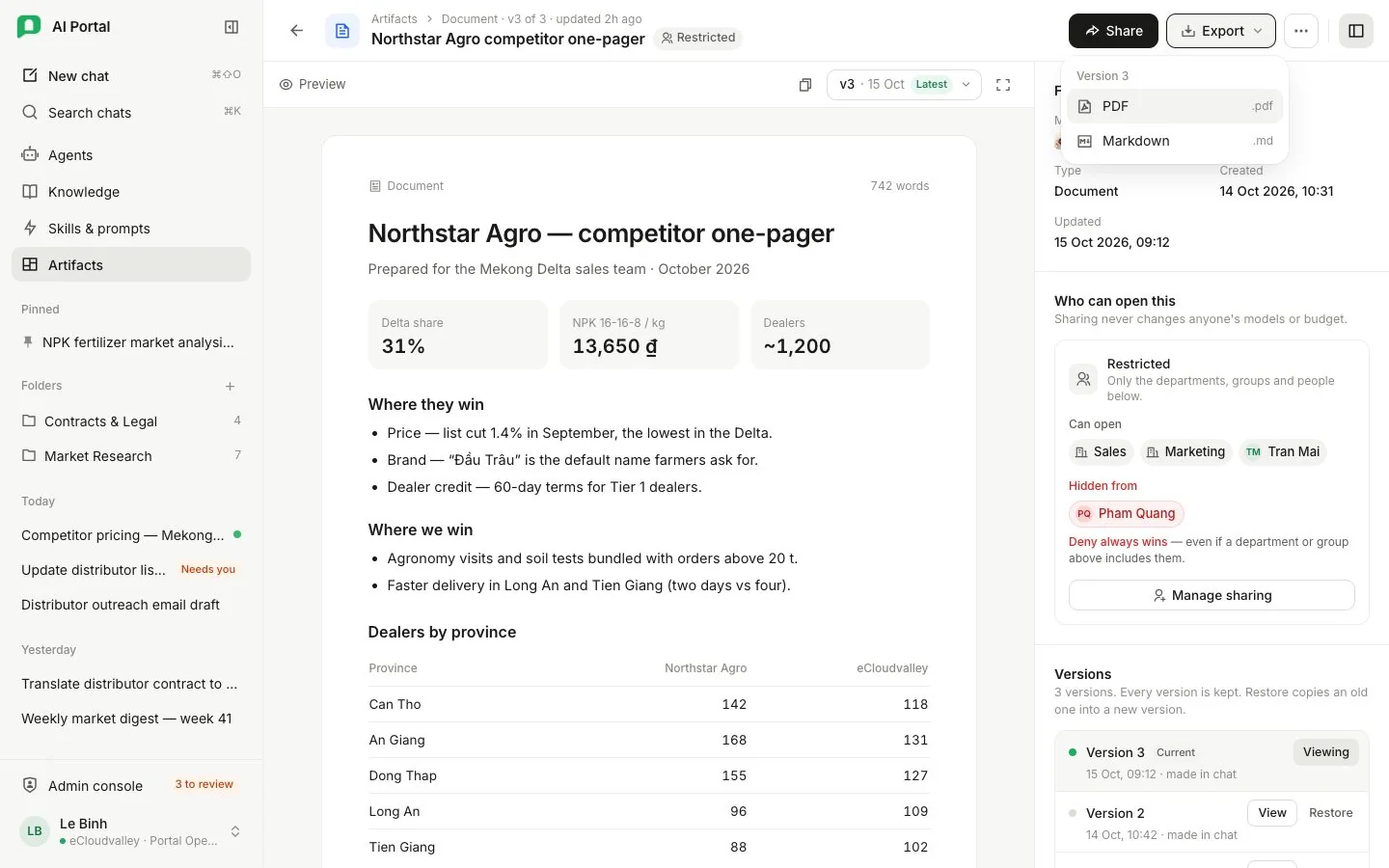
- 1 Share — or Add to library if it was shared with you.
- 2 Export — formats for the version you are viewing.
- 3 More — Open in chat, Copy link, Rename, Delete…
- 4 Copy — the text of this version.
- 5 Version selector.
- 6 Full screen.
- 7 Who can open this — in a sentence, with Manage sharing.
- 8 Versions — View or Restore any of them.
| Control | What it does |
|---|---|
| Share or Add to library | The one main button: Share if you may edit it, Add to library if it was shared with you. |
| Export | A menu of formats for the version you are viewing: PDF or Markdown for a document, PDF or HTML for a web app, PNG, SVG or CSV for a chart, PNG, SVG or its source for a diagram, and the original for a file. File names keep the title as written, accents included. |
| More | Open in chat (your own conversations), Copy link, Rename, Upload new version for a file, Remove from library and Delete. |
| Copy | Copies the text of the version you are viewing. |
| Version selector and Full screen | Moves between versions; full screen gives the viewer the whole window. |
- The Versions list names each version with its date and time. View shows it in the viewer above, which scrolls into view; Restore saves an older version of a text artifact as a new current version, so nothing is lost.
- Where it came from names the agent. A conversation of somebody else’s is named but cannot be opened; one that was deleted says so. A file you uploaded has no such section.
- Who can see this says it in a sentence, with Manage sharing. Sharing never changes anyone’s models or budget.
Spreadsheets, documents and presentations
A file artifact opens in the portal rather than downloading first.
| Format | What you see |
|---|---|
| Spreadsheet | Complete sheets with cell formatting, colours, merged cells, charts and images; wide tables and charts stay together instead of splitting at print-page boundaries |
| Document | Rendered pages with their headings, tables, images, headers and footers |
| Presentation | Actual slide layouts, shapes, colours, images and charts |
| Rendered pages with continuous scrolling and zoom | |
| Image | The original picture, scaled to fit |
| HTML app | An interactive preview with responsive, tablet and mobile widths |
| Markdown | The rendered document |
| CSV and TSV | A table, the first 500 rows |
| Source code, JSON, YAML | Source with syntax colours and a copy action |
| Plain text | The file as written |
| Audio and video | Playback controls for formats supported by your browser |
- Scroll through Office documents, spreadsheets, presentations and PDFs in one continuous view. The page selector follows your position and can jump directly to another page.
- Fit page shows the whole page, Fit width fills the panel, and zoom keeps your place while enlarging details. Presentations start fitted to the page.
- Pages near your position draw as you scroll, and text stays sharp at any zoom. You can select the text on a page and find it with your browser’s own search.
What the preview changes
The preview keeps layout and graphics. Fonts the server lacks are substituted, and emoji are drawn in one colour, so a red, an amber and a green circle look alike in the preview and in a PDF export of it. Spreadsheet formulas are recalculated for the preview, and downloading keeps the original workbook.
Hidden sheets and print areas
Spreadsheet preview includes every sheet, including hidden sheets. It fits each sheet’s content rather than its print area, so the Sheet selector counts worksheets. Printing from Excel still uses the workbook’s original print settings.
A format without a preview
It shows a download notice. If a file cannot be read, the download action remains available so you can open it in its own app. Export offers the original file at the version you are viewing, under its own name. There is no Copy on a file artifact, because there is no text to put on the clipboard.
Web apps
The frontend-developer skill produces a complete HTML app with inline CSS and JavaScript. Open it in the artifact panel, choose a preview width or expand the panel, and use its controls. Reload preview restarts the app and clears its temporary interaction state.
Ask the agent for changes in the same conversation to keep the app’s version history. The agent edits the saved HTML, styles and scripts directly. The downloaded HTML opens on its own in a browser.
PDFs from HTML
Ask the agent for a report, letter or handout as a PDF. It writes the document as HTML, prints it in the portal’s browser and saves the PDF as a file artifact you can open in the panel and download. To change it, ask in the same conversation: the agent edits the HTML and prints a new version.
Before saving
The agent checks the rendered pages before saving. Decks stay editable; ask in the same chat to change a slide.