

Model keys
Use your own API key for a model provider outside Amazon Bedrock — billed to the key, seen only by you.
Employees How-to 3 min read
Settings › Model keys lists the API keys you have pasted for a model provider outside Amazon Bedrock — Gemini among them.
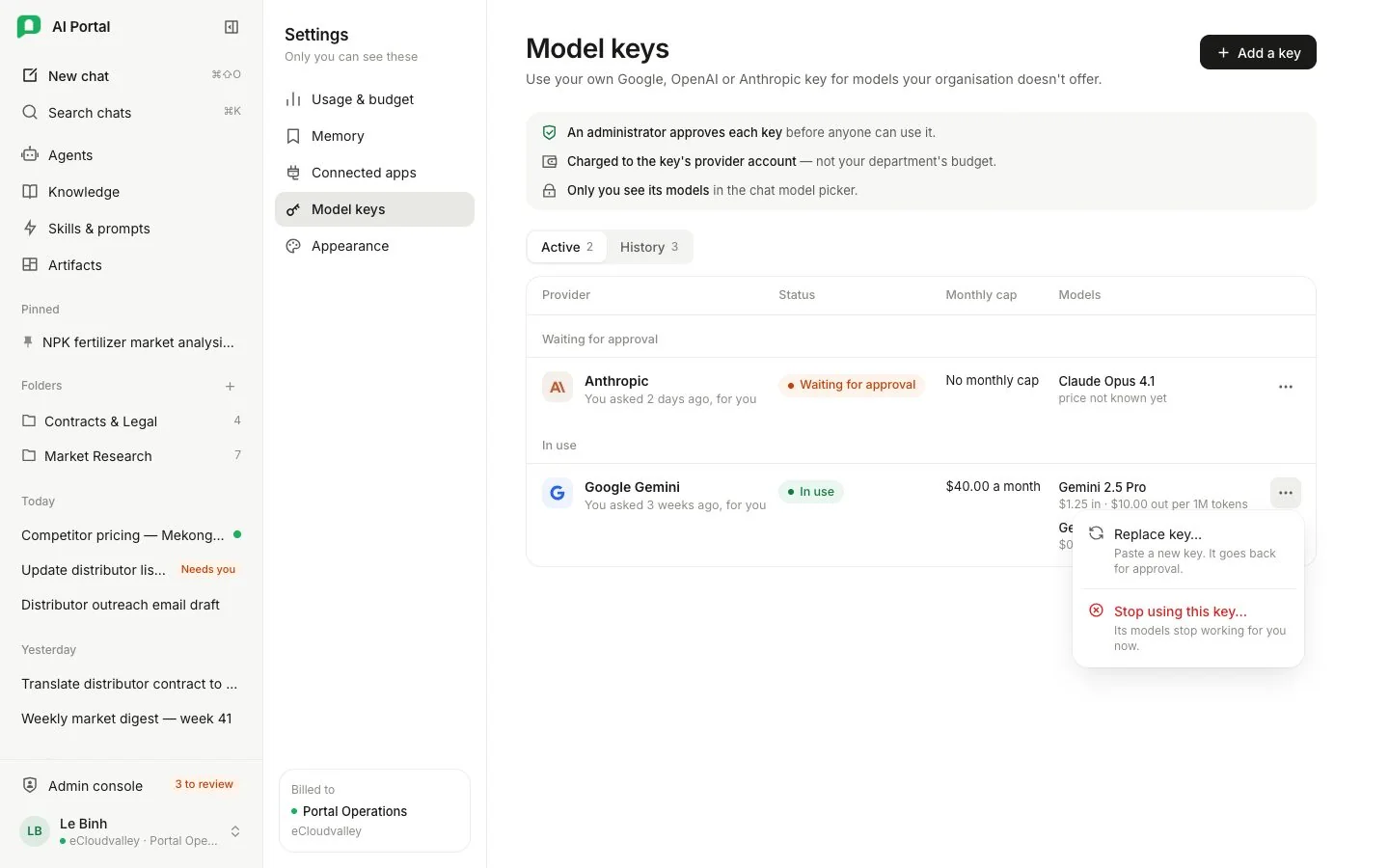
- 1 Add a key.
- 2 An administrator approves each key.
- 3 Charged to the key’s provider account.
- 4 Only you see its models.
- 5 Waiting for approval.
- 6 In use — with its monthly cap and models.
- 7 Replace key or Stop using this key.
Add a key
-
Add a key
Choose Add a key and paste it. The portal asks that provider what the key reaches, so a key the provider refuses never gets stored.
-
Tick the models
The portal lists the models the key reaches for you to tick — no identifier is typed.
-
Wait for approval
A key waits for an administrator before it serves anything.
What a key changes
Key rules
- Only you see its models. Nobody else sees them in the chat picker.
- The provider bills the key directly. What you spend on it never touches your department’s budget, and Usage & budget marks those rows as your own key.
- An administrator approves each key before anyone can use it — replacing a key sends it back for approval.
From a key’s menu, Replace key… pastes a new key, which goes back for approval; Stop using this key… makes its models stop working for you at once.