

Models
The model catalogue, Amazon Bedrock access, the portal's two jobs, and provider keys.
A model is one catalogue row: what the gateway serves it under, what it calls on Bedrock and what it costs. What it can do (images, tool calls, reasoning) is read from the provider.
The screen has two tabs in setup order: Providers (Bedrock access) and Catalogue (the models and the jobs).
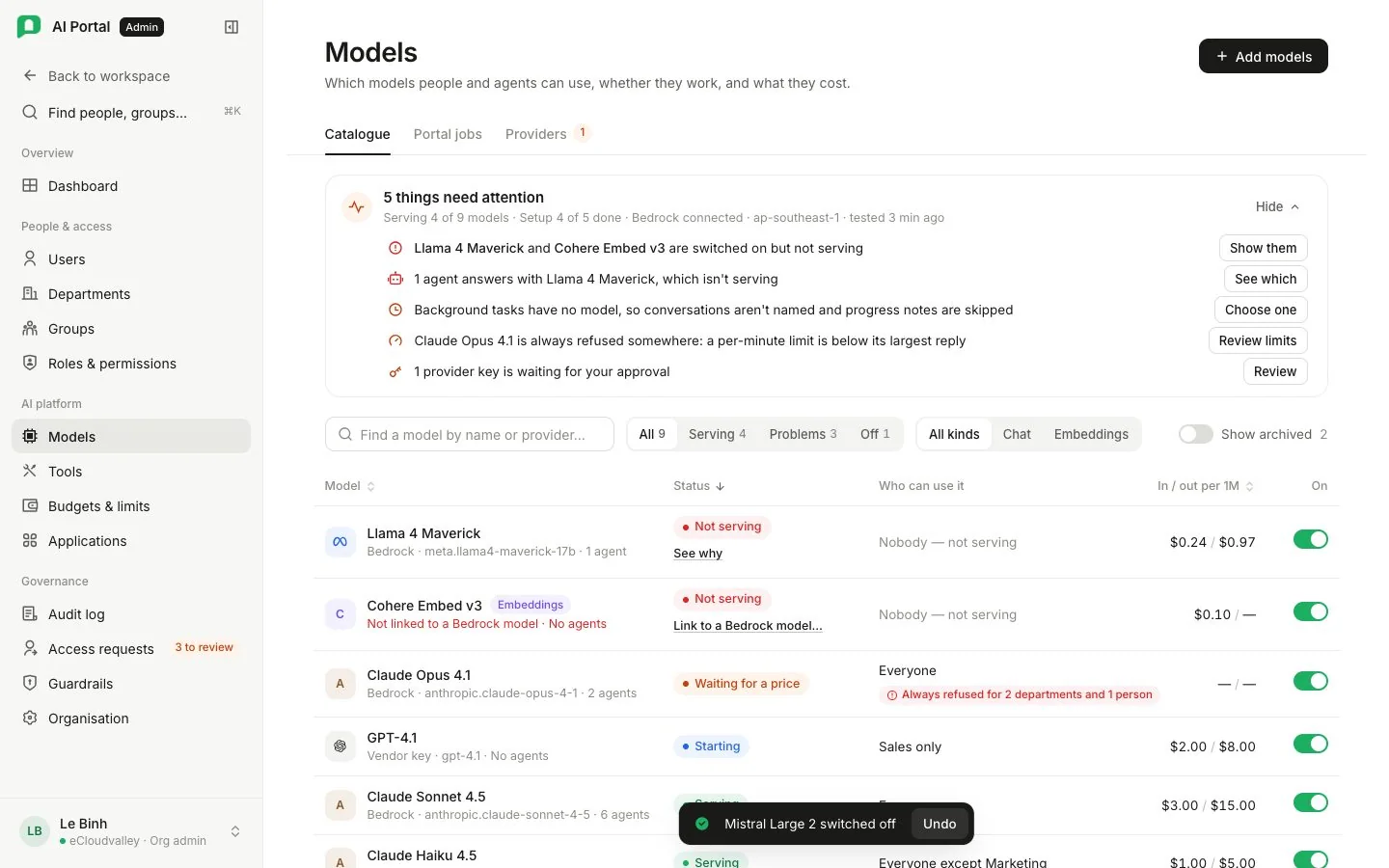
Get models working
Until everything is set up, the top of Catalogue shows a checklist:
- Bedrock connected, with its region and when it was last tested.
- At least one chat model serving.
- An embeddings model doing Document search.
- A model doing Background tasks.
It also warns when a chat model is always refused somewhere. Once done it folds into one line, “Serving N models”, which lists any problem on request: models switched on but not serving, agents answering with a model that is not serving, and provider keys waiting for approval.
The portal’s own jobs
| Job | Does | When nothing is set |
|---|---|---|
| Document search | Makes uploaded documents and memories searchable by meaning | Documents are found by their exact words only |
| Background tasks | Names conversations, writes the progress notes shown while an agent works, and reads pictures in documents set to read them | These tasks are skipped |
A job saves as soon as it changes, with Undo. Clearing a job asks first. A job pointing at a model that stopped serving says so in red. Chat is not a job: people choose from every serving chat model, minus what their department blocked.
Add a model
Before you start
- Amazon Bedrock is connected: Providers shows the region and a passing Test connection.
- The model is enabled for your AWS account in the AWS console under Bedrock › Model access.
-
Open Add models
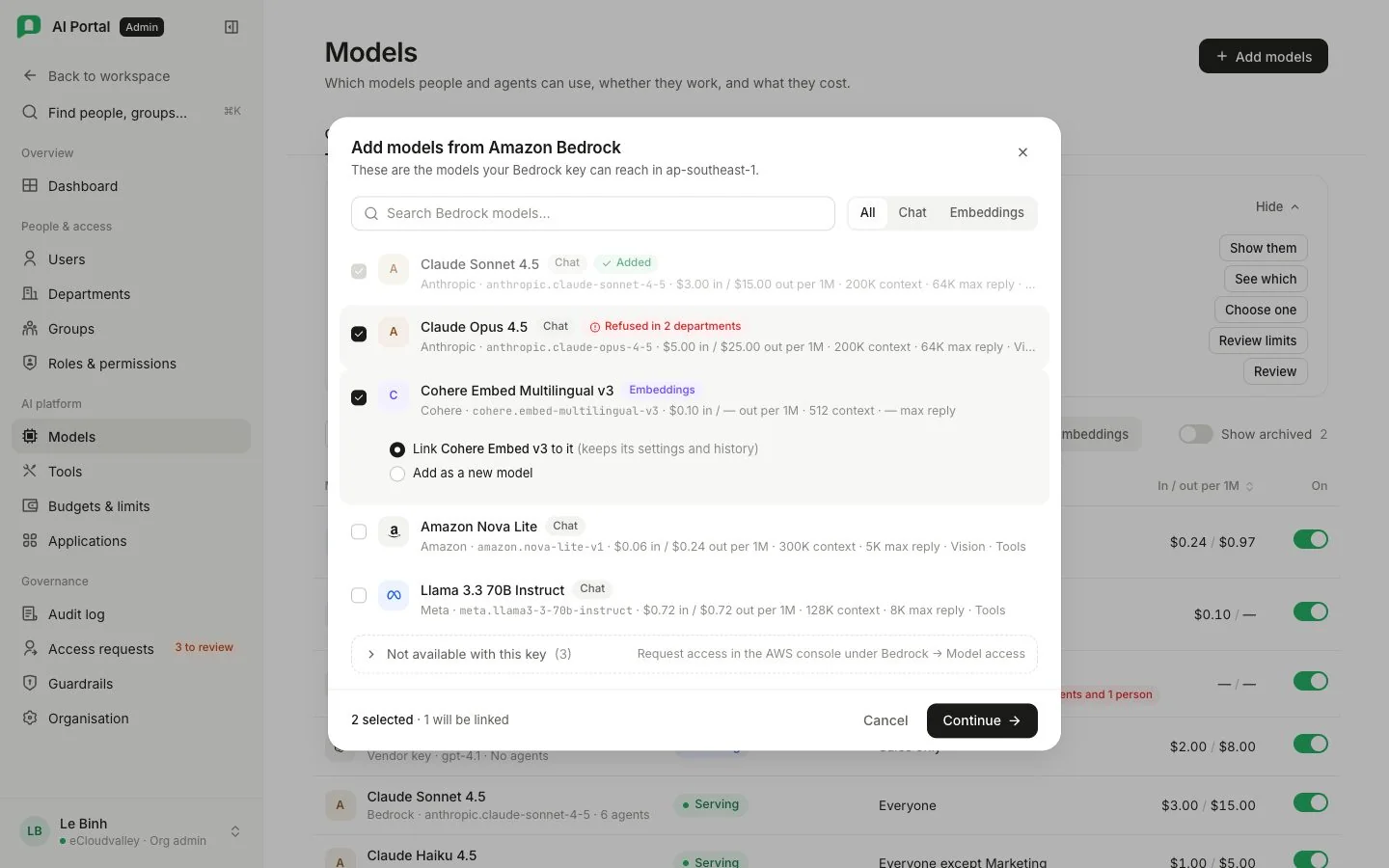
Admin console › Models › Add models. You see every model your Bedrock key can reach in its region.
-
Pick one or more
Search, or filter to Chat or Embeddings. Each row shows its price per million tokens, context window and largest reply. Added means already in the catalogue. Refused in N departments means its largest reply is above their per-minute limit. Models Bedrock lists but this key cannot call are under Not available with this key: enable them in the AWS console first.
-
Link or add
If a pick has the same name as an unlinked catalogue row, keep Link (it keeps that row’s settings, department blocks and history) or choose Add as a new model.
-
Review and add
If a job has no model yet and you picked exactly one model that can do it, you’re offered to use it. Rate-limit warnings repeat here. Then Add N models.
Choose who can use it
There is no department list on the model. Each department keeps its own Available switch for every chat model on its Models tab, so access is set where the budget lives. A new chat model starts on everywhere.
A switched-off model is not only hidden: a request for it is refused and recorded in the audit log as Refused · model blocked.
Catalogue status
| Status | Means |
|---|---|
| Serving | Working. People and agents allowed to use it can choose it |
| Starting | Getting ready after a change, usually under a minute. The table updates by itself |
| Waiting for a price | Bedrock answers but its price hasn’t arrived; chats on it are refused until it does |
| Not serving | Switched on but nobody can use it. The reason is shown, e.g. “Not linked to a Bedrock model” or “Bedrock access is off” |
| Off | Switched off. Nobody can choose it |
Filter by Serving, Problems or Off, by kind, or turn on Show archived. In the chat picker, a model that is on but not serving shows greyed out with the reason.
The switch at the end of a row saves at once, with Undo:
- A model doing a job cannot be switched off until another model takes the job.
- Switching off a model that agents answer with names those agents first; they stop answering until moved to another model.
- A model not linked to a Bedrock model cannot be switched on. Link it first.
A model’s panel
- What’s wrong, when it isn’t serving.
- Who can use it: each department, whether it is blocked or always refused there, the agents that answer with it and the jobs it does.
- Bedrock model: what it calls, and Link to a different Bedrock model…, which keeps the row and its history.
- Name and limits: the display name, the description in the chat picker, the context window and capabilities. The largest reply is the provider’s figure and isn’t edited here.
- Price: input, output and cached rates per million tokens.
- Archive model… switches it off and hides it. Usage history keeps it, so it is never deleted; restore it from Show archived.
Always refused in a department
Before a chat starts, the gateway reserves the model’s whole largest reply against the department’s tokens-per-minute limit. If the limit is lower, every chat with that model is refused there. The row shows Always refused in N, and the panel names the departments and people with their own limit. The limit is too low, not the model: raise it in Budgets & limits.
Amazon Bedrock
The Providers card shows whether Bedrock is connected, the region, how it signs in (an API key stored by the portal, a key in AWS Secrets Manager, or the server’s own AWS role), when the key was added or replaced, and the last test result.
| Control | Does |
|---|---|
| Test connection | One call to Bedrock’s model list. The result and its time stay on the card |
| Replace key | Paste a new API key, or point at an AWS Secrets Manager secret by ARN. Tested on save |
| Use the server’s AWS role… | Signs Bedrock calls with the server’s role and discards the saved key, after a confirmation. Offered when the deployment allows it |
| Turn off for everyone… | Stops chat, document search and background tasks for every department, after a confirmation |
Provider keys
Keys for Google, OpenAI or Anthropic. A key’s models reach only its owner (one person, or everyone in one department), and its spend is charged to the key’s own account, outside every department budget.
-
Add a key
Choose the provider and who can use it, paste the key and, optionally, a monthly spending cap. Continue asks the provider what the key can reach; a refused key stops here with the reason. -
Choose the models
Tick the models to use with the key, then Send for approval. -
Approve
Waiting requests come first, with who asked, for whom, the models and prices, and the cap. Somebody holdingmodel_catalog.manage, other than the requester, selects Approve or Reject… with an optional reason the requester sees.
A key’s More menu offers Replace key… (back to approval), Cancel request while it waits, and Stop using this key…, which names the models that stop working. Rejected and stopped keys collect under History.
A Department Lead without model_catalog.manage sees this page as Provider keys: their department’s keys and models. A key somebody pays for themselves lives in their Settings › Model keys.