

Users
Everyone who can sign in: invite people, change their access, set their own limits, or view the portal as they do.
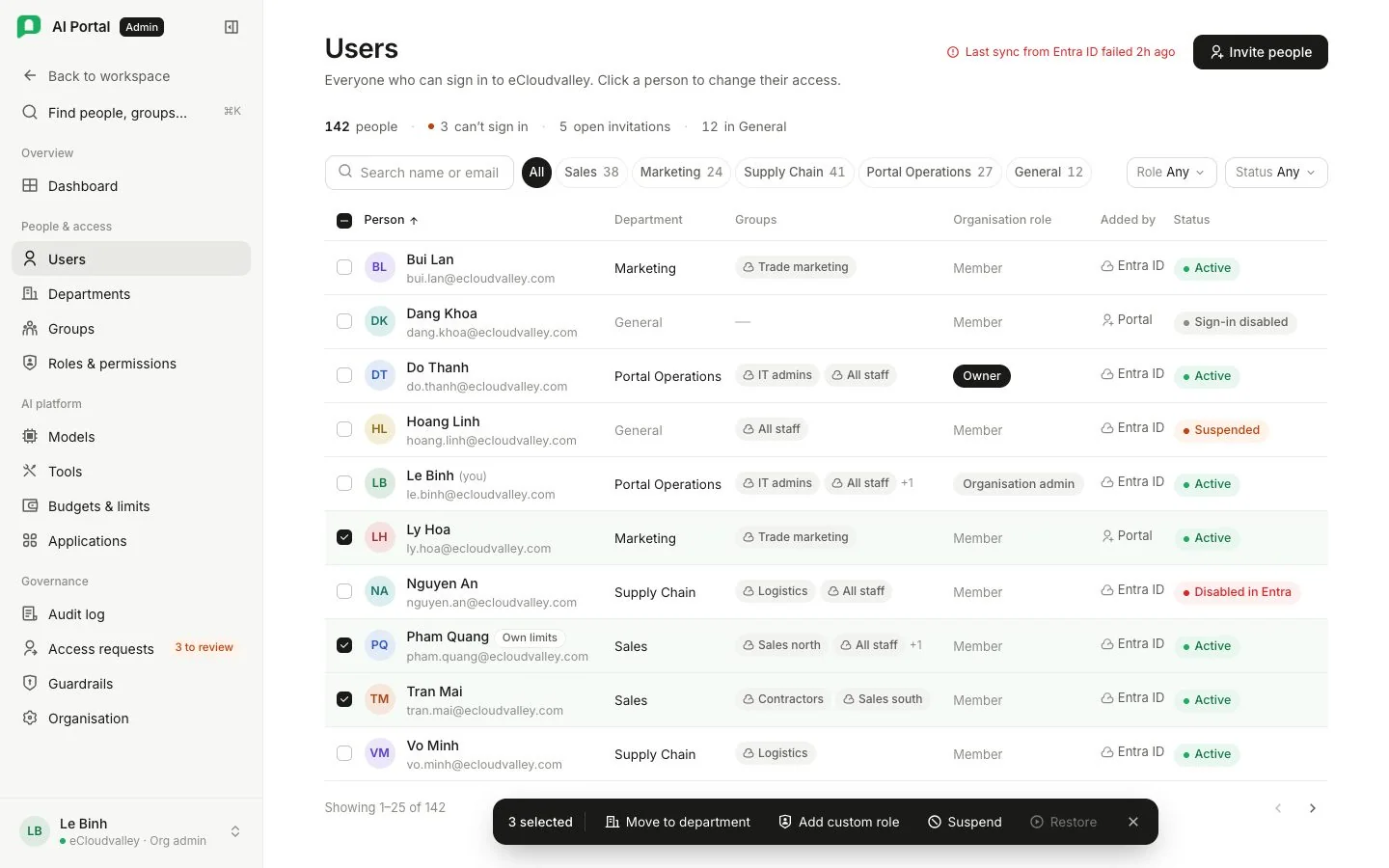
Tiles count users, open invitations, departments and organisation admins. Search by name, email, department or group, narrow the list to one department with the tabs, or filter by status.
- Source says whether a person was added here or pushed in by your identity provider.
- Status is the portal’s own switch: suspending somebody cuts their access without waiting for the provider.
A person’s profile
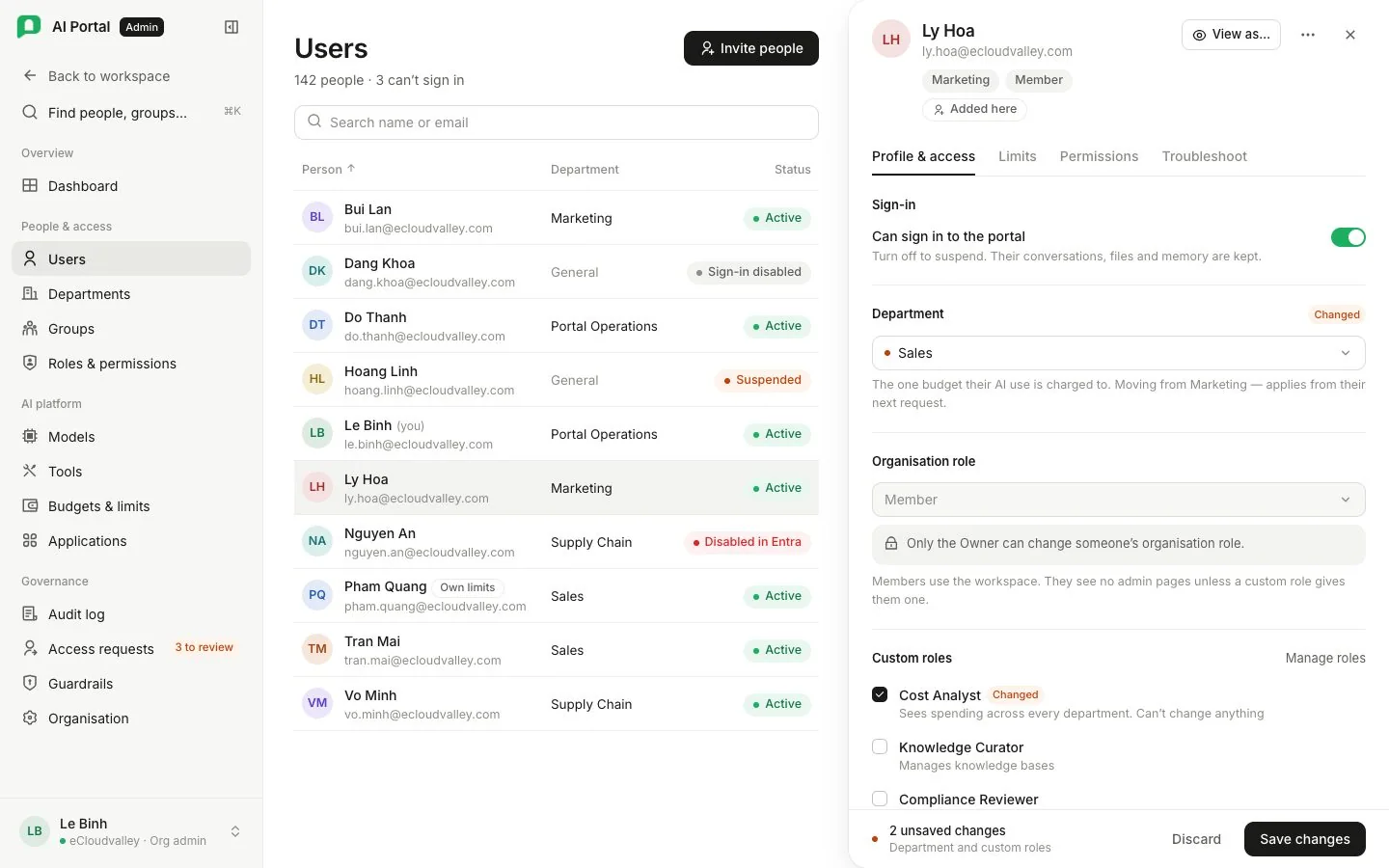
Clicking a person opens their profile: Identity, View as, Department, Organisation role, Limits, Account, Groups, Custom roles and Effective permissions.
- Name and email are read-only for anybody who arrives from your identity provider.
- Organisation role picks their built-in tier. Only the Org Owner changes it, and nobody changes their own.
- Turning off Account enabled and confirming Deactivate account revokes their gateway key at once. Their sign-in account, department and groups stay as they were.
Invite somebody
Invite somebody brings a person into the organisation. An invitation creates nothing until it is accepted, so it can always be withdrawn, even when a provider owns the directory.
-
Email
The address they sign in with. Acceptance is matched against it. -
Department
Their usage is billed to it from their first message. It grants no authority over the department. -
Role in the organisation
Member or admin. An owner cannot be invited through a link; groups grant any extra capability. -
Create the invitation
Sends it. Invitations so far lists earlier invitations, which you can withdraw.
When a provider owns the directory, inviting and resending are its job; see First-run wizard.
View the portal as somebody
An Org Owner or Org Admin can act as another person for 30 minutes to see what they see. The capability is user.impersonate, and no custom role can hold it.
-
View as
On the person’s profile, select View as. The confirmation reminds you that a chat turn you start spends their department’s budget. The portal reloads as them, with a banner and a countdown for the whole session.
-
Exit
Ends the session and returns you to your own account. The session also ends by itself when the countdown reaches zero.
During the session every permission, visibility rule and budget is that person’s, and you cannot ask for, decide or use an access request. The portal refuses to start for a person who holds a capability you lack, or a suspended person. Starting and ending both write an admin event naming you and the person, and rows written in between carry that person’s id.
Give someone limits of their own
The profile’s Limits row opens one person’s own budget, token quota, rate limits and alert thresholds. Turning on Limits of their own makes these numbers replace their department’s, higher or lower, and their turns then spend on a gateway record of their own. The audit log and the spend report still name their department. Turning it off returns them to the department’s numbers.
See Budgets & limits for how the levels combine.