

Departments
Create cost buckets, add people one by one or from a group, resolve conflicts per person, and set each department's models and budget.
A department is the cost bucket a person’s spend is billed to. Everyone belongs to exactly one, so every request has one place its cost lands. A department sets budget and policy only: it grants no permissions.
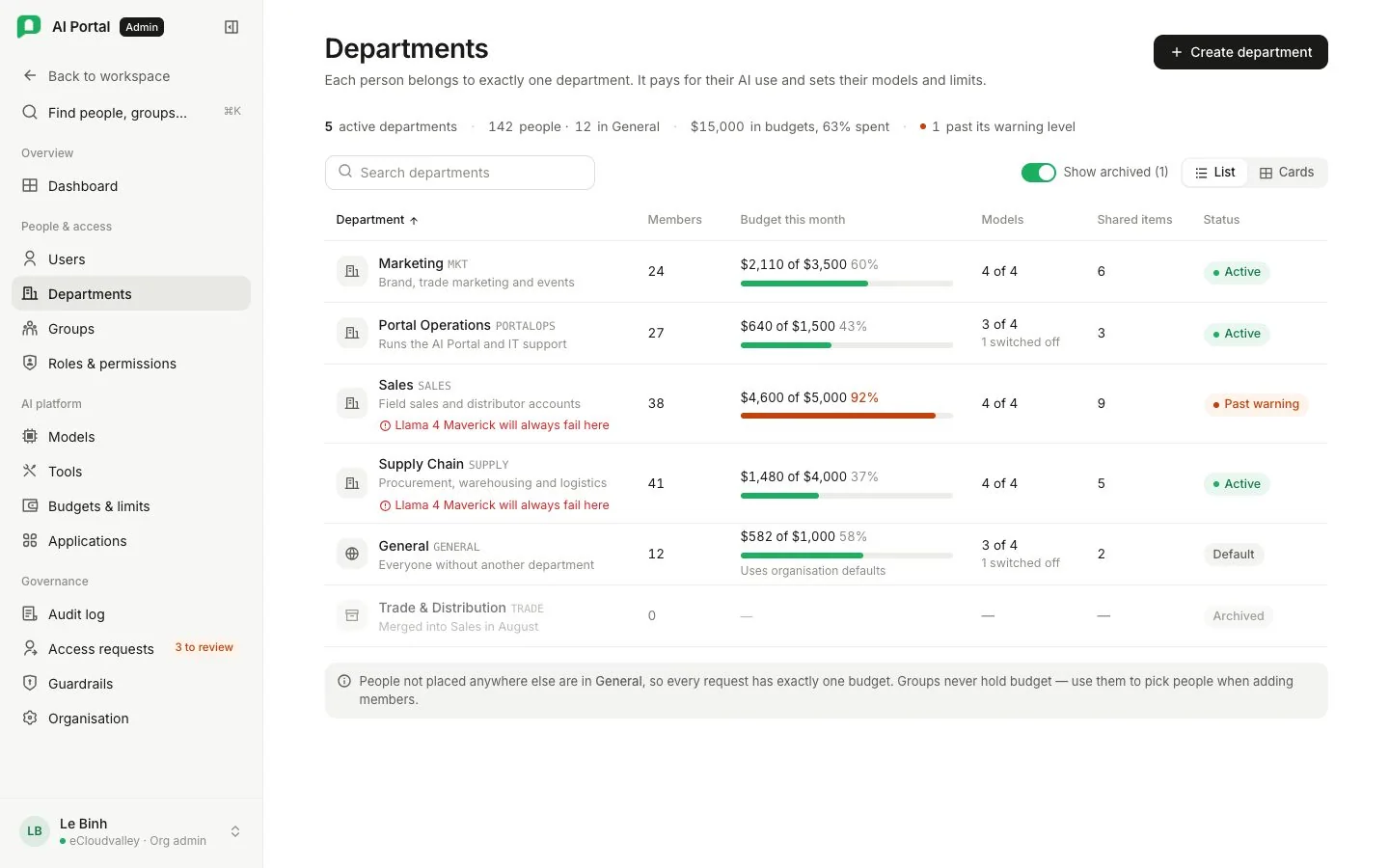
Each card shows the department’s cost centre, its members, how many models it switched off, how many resources it reaches, and its spend this month against its budget.
| Department | Rule |
|---|---|
General | The system department. It receives anybody without another assignment and cannot be removed. Moving somebody out means filing them elsewhere |
| Archived | Keeps its history, takes no new members, and no picker offers it |
Create a department
Select Create department, name it and give it a cost centre. A new department starts able to use every chat model in the catalogue.
Inside a department
| Tab | Holds |
|---|---|
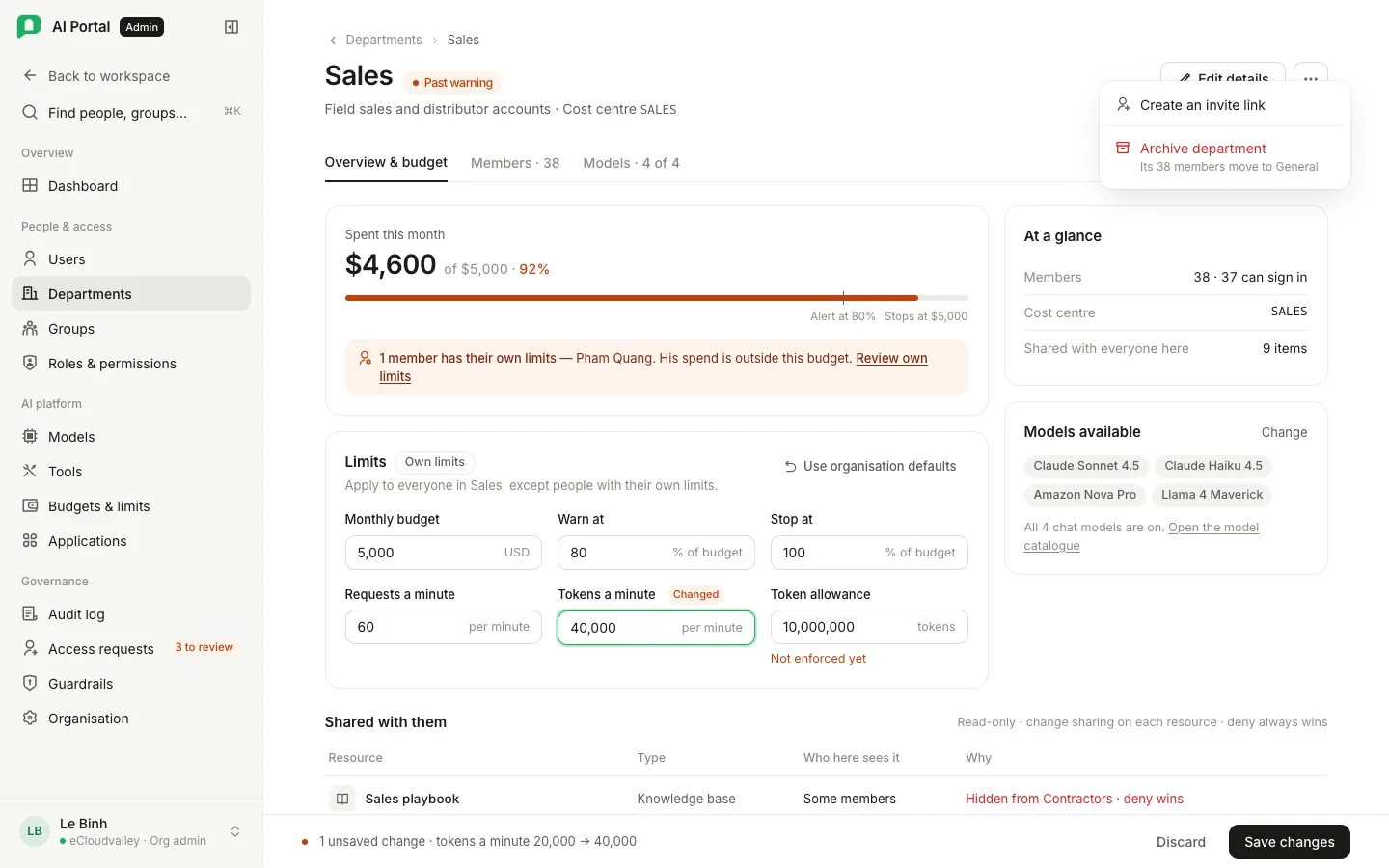
| Overview | Member, budget, model and resource counts, the Profile card (cost centre, rate limit, token quota, alerts) and Budget this month with the models available |
| Members | The people billed here |
| Models | Which chat models they may call |
| Budget & limits | The department’s own budget, quota, rate limits and alert thresholds |
| Visible resources | What this department can reach |
Add people to a department
Before you start
- The department exists.
- The portal owns the directory. When a provider owns it, moving people between departments is the provider’s job.
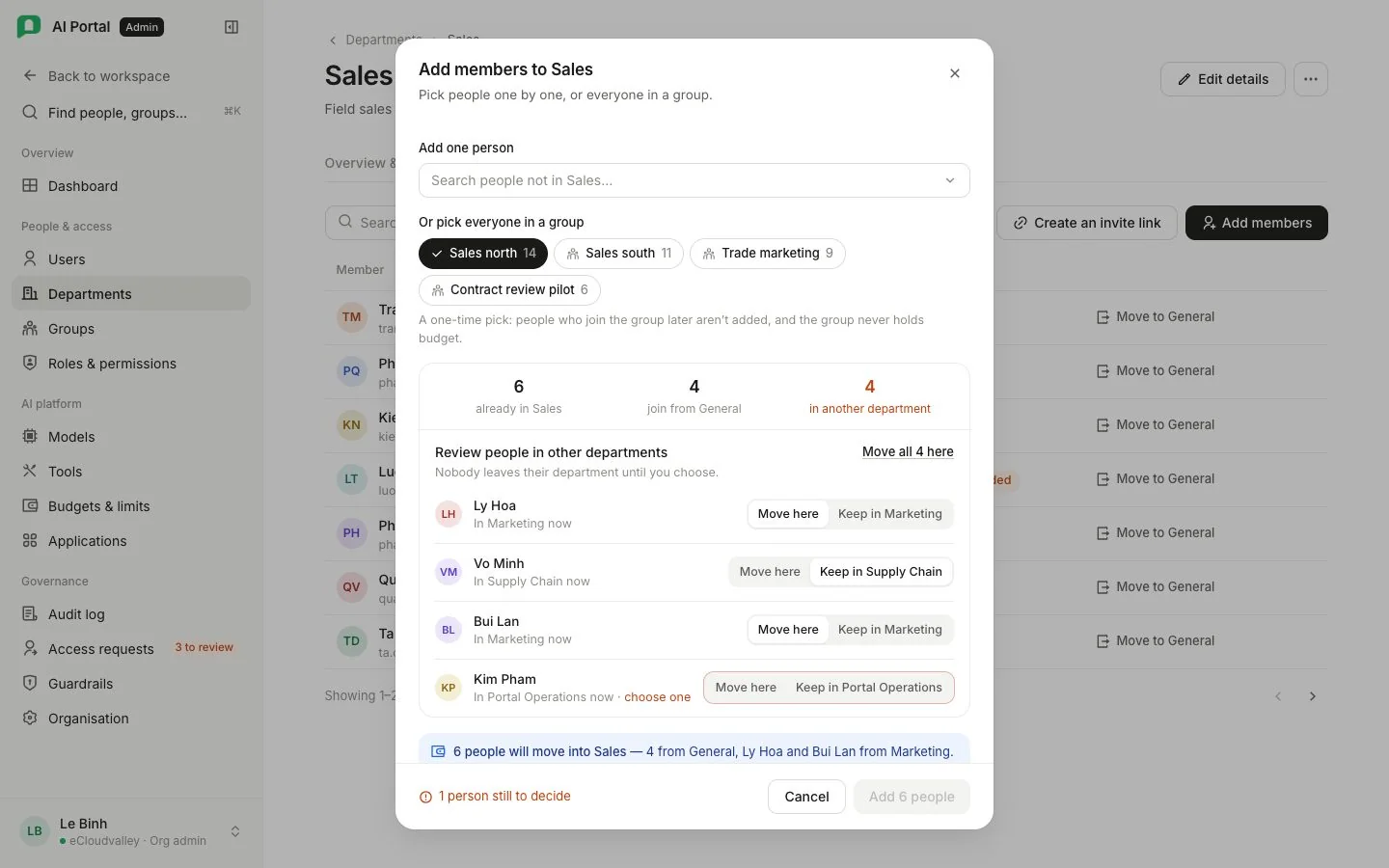
Picking a group does not link the group to the department. The portal expands it into people at that moment, shows you who is already filed elsewhere, and bills only the people you confirm.
-
Open the department
Admin console › Departments, choose the department, open Members and select Add members.
-
Pick people
Search under Add one person, or choose a chip under Or pick everyone in a group. You can combine both.
-
Check the counts
The dialog splits your pick: people already here, people joining from
General, and people in another department. -
Decide for each person in another department
Choose Move here or Keep in … on every row, or Move all N here. Nobody leaves their department until you choose.
-
Add them
Add N people stays off while anyone is undecided. The footer says how many are left.
The conflict review
What changes for them
- Spend is billed here. From now on every request they make counts against this department.
- Shares are recalculated. The budget is split between more people, here and in the departments they left.
- This department’s models. Their chat model list follows what this department allows.
- Their sign-in, groups and roles stay as they were.
Choose which models a department may use
On the Models tab, each row shows the model, its tier and its price per million tokens in and out. Everything in the catalogue is available until you switch it off. Turning off Available stops this department being offered that model; no other department changes.
- Only chat models appear. Embedding and background work are chosen once for the organisation on Models.
- A change that would switch off the department’s last chat model is refused.
- Availability is set here only; the catalogue shows which departments gave a model up but does not edit it.
Set the department’s budget
Budget & limits shows Spend this month against the budget, then Monthly budget and quota (Department budget, Token quota), Rate limits (Requests per minute, Tokens per minute) and Over-limit policy (Soft alert and Hard stop as percentages of the budget). The budget is split evenly between members; people with limits of their own spend against those instead. A department’s values replace the organisation’s, higher or lower. See Budgets & limits.
Questions
How do I take someone out of a department?
Use the remove button on their row. They move to General. Their sign-in account and groups are untouched.
Can a person be in two departments?
No. Each person has exactly one department, so every request has one place its cost lands.
What about people who join the group next month?
They are not added. Pick the group again, or add them one by one.