

Access requests
Ask for and decide requests that need a second admin: reading someone's conversations and raising one person's budget.
Reading somebody else’s conversations and raising one person’s budget both need a second person to approve. See Access approvals.
Ask to read conversations
-
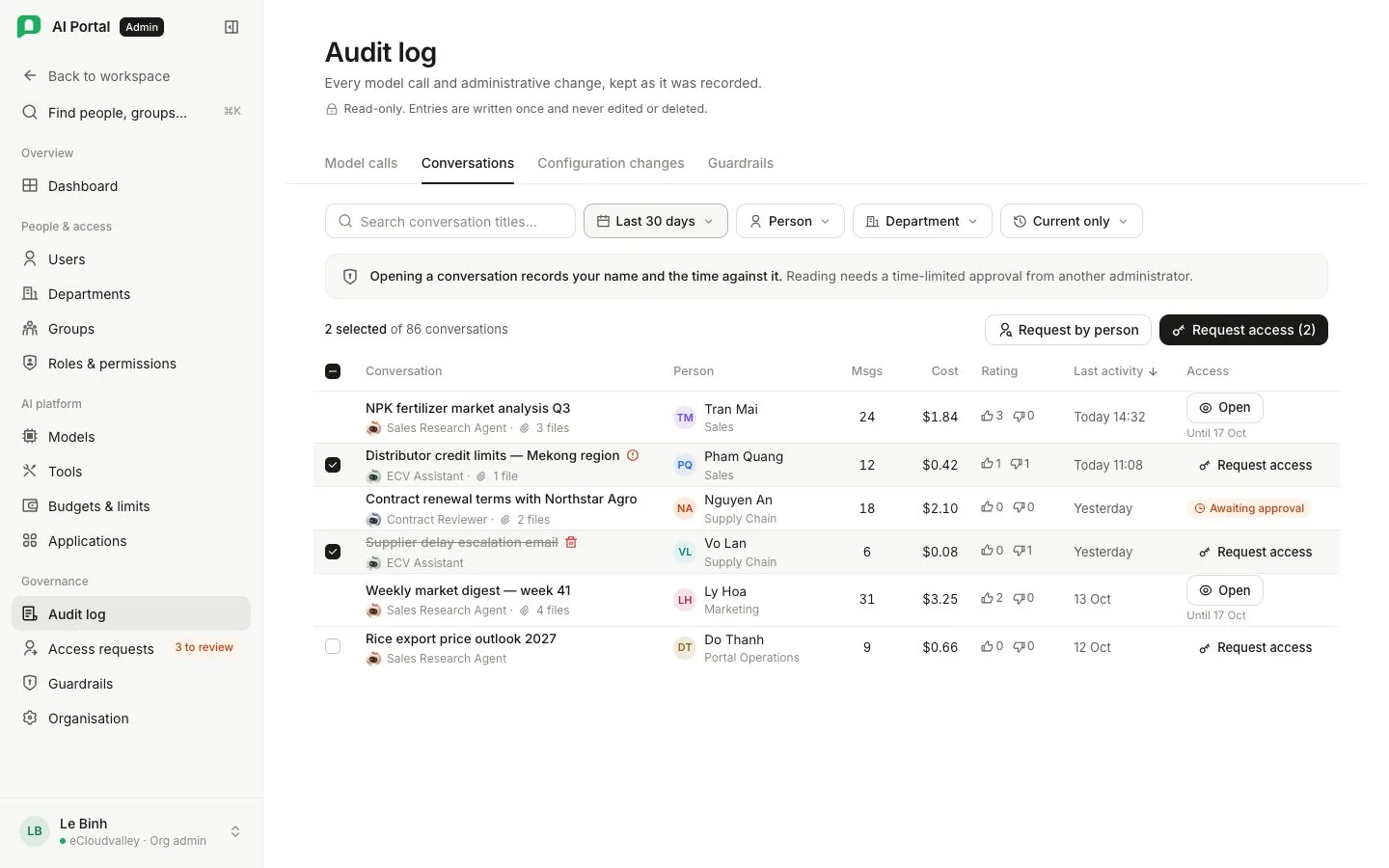
Pick conversations or a person
Tick one or more conversations and select Request access above the list (it stays greyed until a row is ticked), or use the button at the end of one row. Or select Request by person to ask for one person’s conversations started between two dates. A conversation started before the first date stays outside the grant, even if it continued inside it. New request on Access requests opens the same form.
-
Person
Sorted by name, searchable by name or email, and leaves you out: you can already read your own. -
Started from and Started until
Default to the last 30 days. The end cannot fall before the start or after today. -
Reason
What you are investigating. Reference takes an optional ticket number. -
Access lasts
How long the grant lasts once approved, up to 72 hours. -
Send request
The dialog lists who Can approve. Neither you nor anybody whose conversations it covers may decide it. When nobody else holds the permission, it says so, names what an Org Owner has to grant, and Send request stays greyed. Once sent, the request waits under My requests.
Decide a request
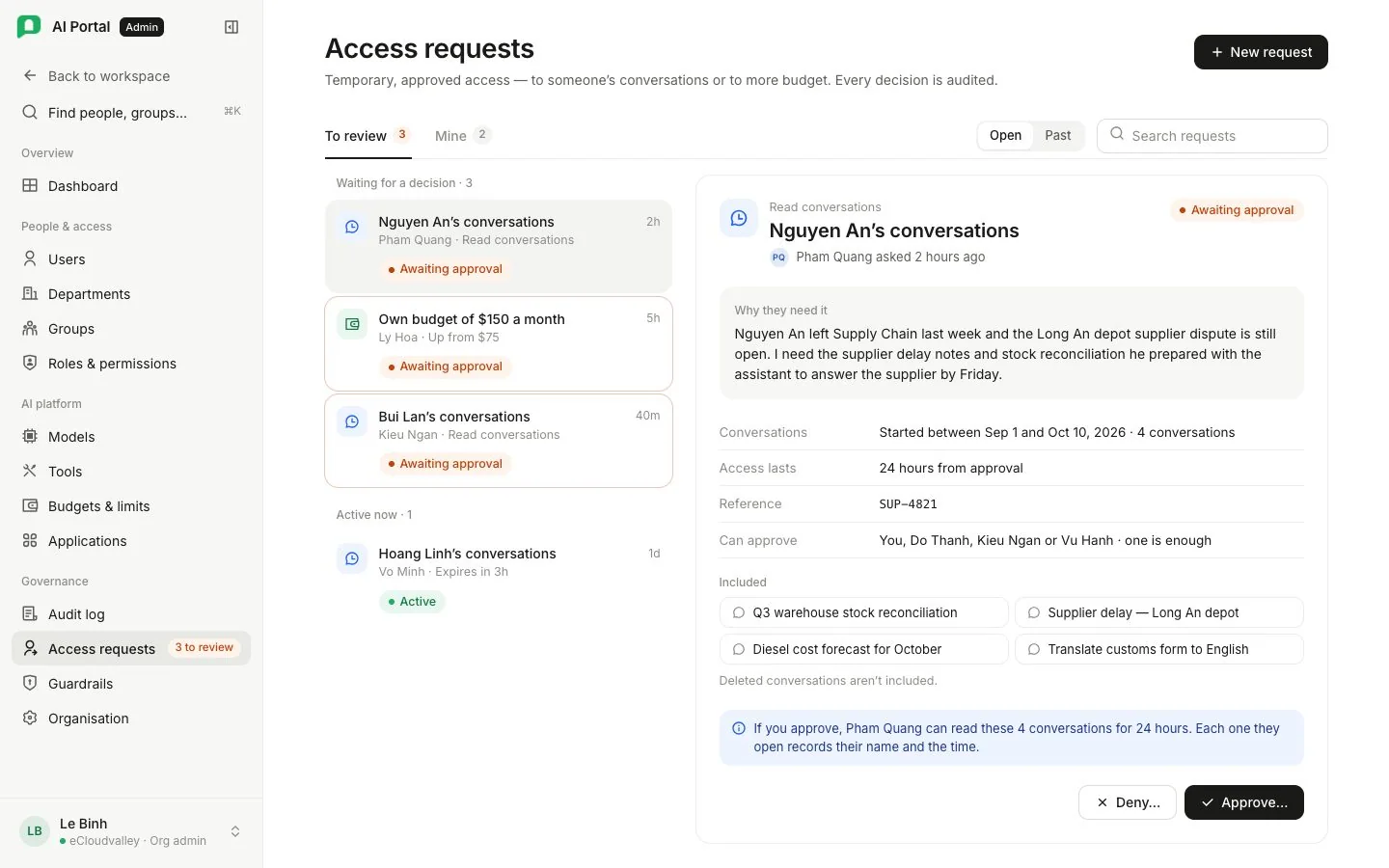
To review lists every request you may decide: transcript requests if you hold transcript.approve, budget requests if you hold policy.manage. The sidebar and tab count those waiting; a list that fails to load says so with Try again. Open shows Waiting for a decision and Active now; Past shows the rest.
Each card shows what is asked, the conversation titles (first three, with Show more), the full reason, who asked and when, the duration or time left, the reference, and who Can approve. A budget card shows the figure asked, Up from the current budget, the person’s spend this month, the department’s spend against its budget, and how far approving lets the department’s total go over budget, since an own budget is spent outside the department’s.
-
Approve
Confirms what approving does, with an optional Note the requester and the audit trail see. A transcript grant’s clock starts at approval, so a late approval still lasts the full duration. An approved budget is written onto the person at once, and the card moves to Past as Used. -
Deny
Asks Why and sends the note back. You cannot narrow or shorten a request: deny it with a note and the requester asks again. -
Revoke
Asks first, then ends an active grant at once. The next read under it is refused.
A request nobody decides expires after seven days.
Your own requests
My requests shows what you asked for. A pending card shows Waiting for and who could decide it, or a warning when nobody can.
- Withdraw asks first, then cancels an undecided request.
- Hand back asks first, then ends a grant you no longer need before it expires.
Once approved, the covered conversations open on the audit log, and the panel names the approver and when the grant ends.
Budget requests
A member selects Ask for a higher budget in Settings › Usage & budget. It arrives under To review as Own budget of … a month, with Up from and their current budget. Approving gives the person limits of their own: the figure they asked for plus the five other limits they were already held to. They then spend on a gateway record of their own instead of the department’s pool. The row stays until somebody changes or clears it under Limits on their profile.
If the gateway refuses the new budget, the request stays pending and nothing is written.
The organisation’s switch
Approve reading conversations on Organisation › Approvals turns approval for transcripts on or off. Only an Org Owner may switch it off; an Org Admin may switch it on. Budget requests have no switch.
Requests and grants are unavailable while viewing as another user.