

Organisation
Your organisation's profile, data residency, branding, sign-in and provisioning, agent policies and approvals.
Each deployment holds one organisation. This screen describes it and sets its organisation-wide rules. It opens with org.settings.manage. Each tab has its own address (?tab=branding, for example), so a link opens the right one.
| Tab | Holds |
|---|---|
| General | Profile and data residency |
| Branding | Logos and the Terms link |
| Sign-in & provisioning | The sign-in check, the sign-in provider, Microsoft applications, people’s pictures, the provisioning credential and report |
| Agent policies | Organisation agent rules and whether connected apps ask before each action |
| Approvals | Whether reading conversations needs a second admin |
General
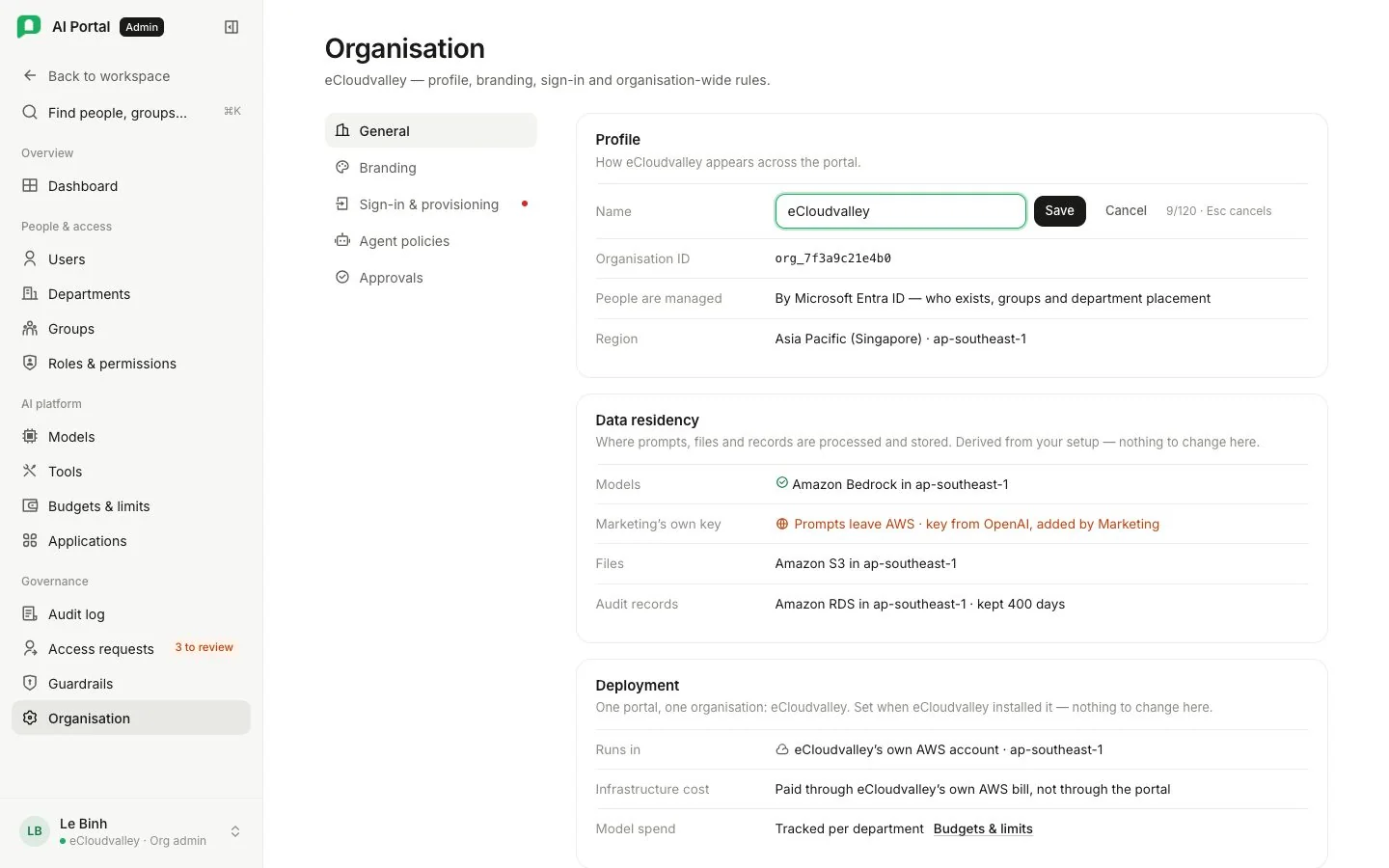
Profile shows the name, the organisation ID, who owns the directory and the AWS region. Rename changes the name shown in the account menu, invitations and greetings. The organisation ID, directory owner and region are permanent: the provisioning address and the sign-in provider are built from the ID, so support asks for it first.
Data residency says where the portal keeps its data and where each switched-on model sends prompts. Conversations, files and audit records are stored in this deployment’s AWS account and region, and Bedrock models run in that region. A model reached with a key for another provider, such as Google Gemini, sends prompts outside AWS; the card names each such provider and whose key it is, so what you tell an auditor is true.
Branding
Your marks appear in the sidebar, account menu, browser tab, sign-in and sign-out pages and invitations. Until you upload anything, every screen shows the product’s AI Portal logo.
- Three uploads: a wordmark for light backgrounds, a wordmark for dark backgrounds, and a square mark for the collapsed sidebar, account menu and browser tab. PNG, WebP or JPEG under 512 KB, ideally transparent and at least 64 px tall. The preview shows each at its real size on light and dark. Replace and Remove act on one upload.
- Terms link adds a Terms and conditions entry to everyone’s account menu. Leave empty for none.
- Show our logo on the sign-in page shows your logo when somebody follows an invitation, signs in again in that browser, or tries an address at your domain in the email and password form. It is off by default, because turning it on tells anyone who tries an address that your company uses the portal.
Save branding applies everything at once. Leaving with unsaved changes asks first; a replaced or removed logo is deleted on save.
Sign-in & provisioning
Can your people sign in is a single check: either accounts live in this portal, or sign-in is brokered to your provider and everything it needs is configured.
Register a provider opens a guided setup of four steps: register the sign-in application and paste its values, check sign-in, issue the provisioning credential and paste it into your provider, then send one person and wait for them to arrive. Each step saves as it goes, so closing halfway loses nothing and reopening resumes at the first unfinished step. A finished setup opens on a summary with Review per step. Walkthroughs: Entra ID, Okta.
When a provider owns the directory, a banner shows until the provider is registered, sign-in checks pass and a provisioning credential exists. In a portal-owned directory provisioning is optional.
Sign-in provider
With no provider, Status reads Accounts held here. Otherwise the card shows the provider, its Redirect URI, the issuer, the client ID and the client secret’s expiry, with a badge that turns amber 30 days before and red once passed.
| Control | Does |
|---|---|
| Change provider | Opens the form filled in. Leave the secret blank to keep it; people’s pictures are left as they are |
| Rotate secret | Opens the form at the secret |
| Repair sign-in | Re-applies the portal’s sign-in settings with the stored secret, which fixes most failing checks |
| Disconnect provider | In a portal-owned directory only, after confirming; people go back to accounts held here |
Provisioning
The address your provider pushes to, and the credential it pushes with. Issue a provisioning credential (or Replace the credential) asks how the connector authenticates: OAuth client credentials (default: a token address, client identifier and secret) or Bearer token (one long-lived secret). A secret is shown once. Issuing a credential stops the old one at once, so paste the new values into your provider straight away.
Identity & provisioning shows the provider, Users synced, Groups from your provider, Last sync and whether Provisioning is on. A Last sync of never with provisioning on means the provider has not pushed yet: the first thing to check when a new joiner cannot sign in. Entra pushes roughly every 20 to 40 minutes.
Microsoft applications
With Entra ID, one app registration (one secret) signs people in, reads their pictures and reads SharePoint; provisioning runs on a separate enterprise application. The card shows the sign-in application, the SharePoint credential and how many listed sites read back readable. It warns when SharePoint’s credential belongs to a different Entra directory from sign-in. Nothing is edited here: SharePoint is on Tools.
People’s pictures
Three answers, saved as you pick:
- None (default): everybody keeps the illustration drawn from their name.
- Each person, when they sign in: needs delegated
ProfilePhoto.Read.Allconsented on the sign-in application. A picture arrives at the person’s next sign-in. Choose it only after consent: the portal asks for the scope on every sign-in, and an unconsented tenant refuses the sign-in, not just the photo. - Everybody, on a schedule: needs the same permission as an application permission. Reads everybody, a batch at a time, over the following minutes.
Either reading answer checks a person again a week later, which is how a changed picture arrives. Changing the answer needs no client secret. Only Entra ID serves photos, so other providers get no choice.
Directory mode
Whether the portal or your provider owns the directory was chosen in the first-run wizard and no screen changes it.
Agent policies
Rules that reach everybody as soon as they are set: whether agents appear in the workspace, whether people may create their own, and how a chat picks its agent. Connected apps sets whether an agent asks the person before each action it takes in a connected app (Ask before each action) or runs without asking (YOLO). YOLO skips confirmation only; permissions, OAuth scope, policy and audit still apply.
Approvals
Approve reading conversations decides whether reading another person’s conversations waits for a second admin. Only an Org Owner may switch it off, after confirming; an Org Admin sees a lock and the reason. When nobody else can approve, the card warns that requests will wait until a second admin exists. Requests are decided on Access requests.