

Get started What's where
What's where
A tour of the portal — the rail, the message box, search, Settings and the Admin console.
Everyone Overview 4 min read
Everything you use daily sits on one screen: the rail on the left, the message box in the middle, and a budget meter at the top right.
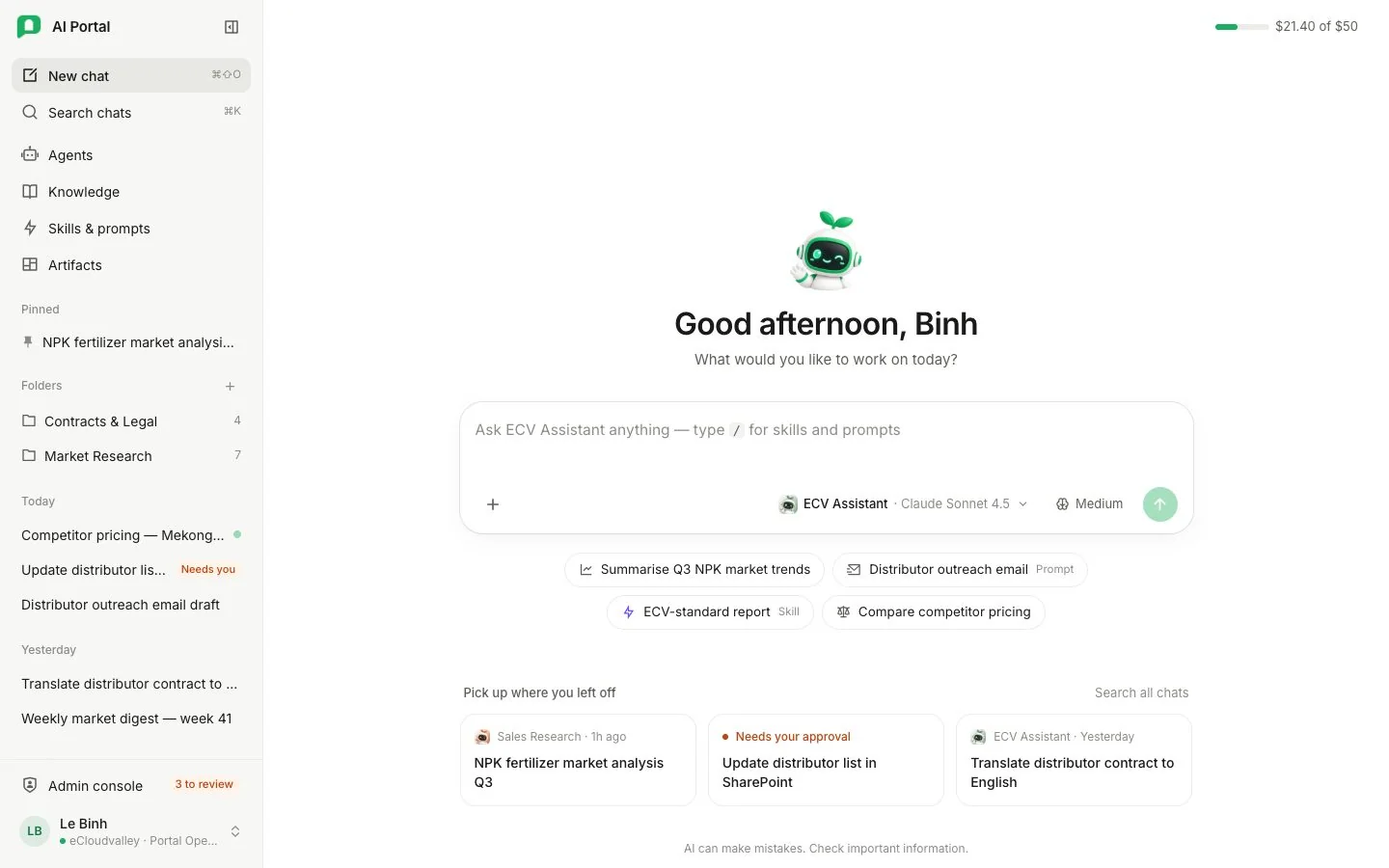
- 1 New chat — start a fresh conversation.
- 2 Search chats (⌘K) — find any conversation, agent or page.
- 3 Workspace — Agents, Knowledge, Skills & prompts, Artifacts.
- 4 Pinned and Folders — conversations you filed.
- 5 Your conversations, newest first, grouped by date.
- 6 Admin console — administrators only, with what waits for review.
- 7 Your name — opens Settings, the theme and Log out.
- 8 What you've spent this month against your share.
- 9 The message box — agent, model and thinking effort live in its toolbar.
- 10 Starters — fill the message box; nothing is sent until you send.
- 11 Pick up where you left off — recent conversations.
The rail
- New chat and Search chats sit at the top.
- The workspace links — Agents, Knowledge, Skills & prompts, Artifacts — fold away with their heading, and the rail remembers it.
- The button beside the logo shrinks the rail to icons; that is remembered too.
- Your conversations follow: Pinned, Folders, then newest first by date. See Your conversations.
- An administrator’s rail adds Admin console at its foot, with a chip such as 3 to review. See the Admin console overview.
- At the very foot is your name, your organisation and your department badge.
Settings
Select your name at the foot of the rail, then Settings. Only you can see these pages.
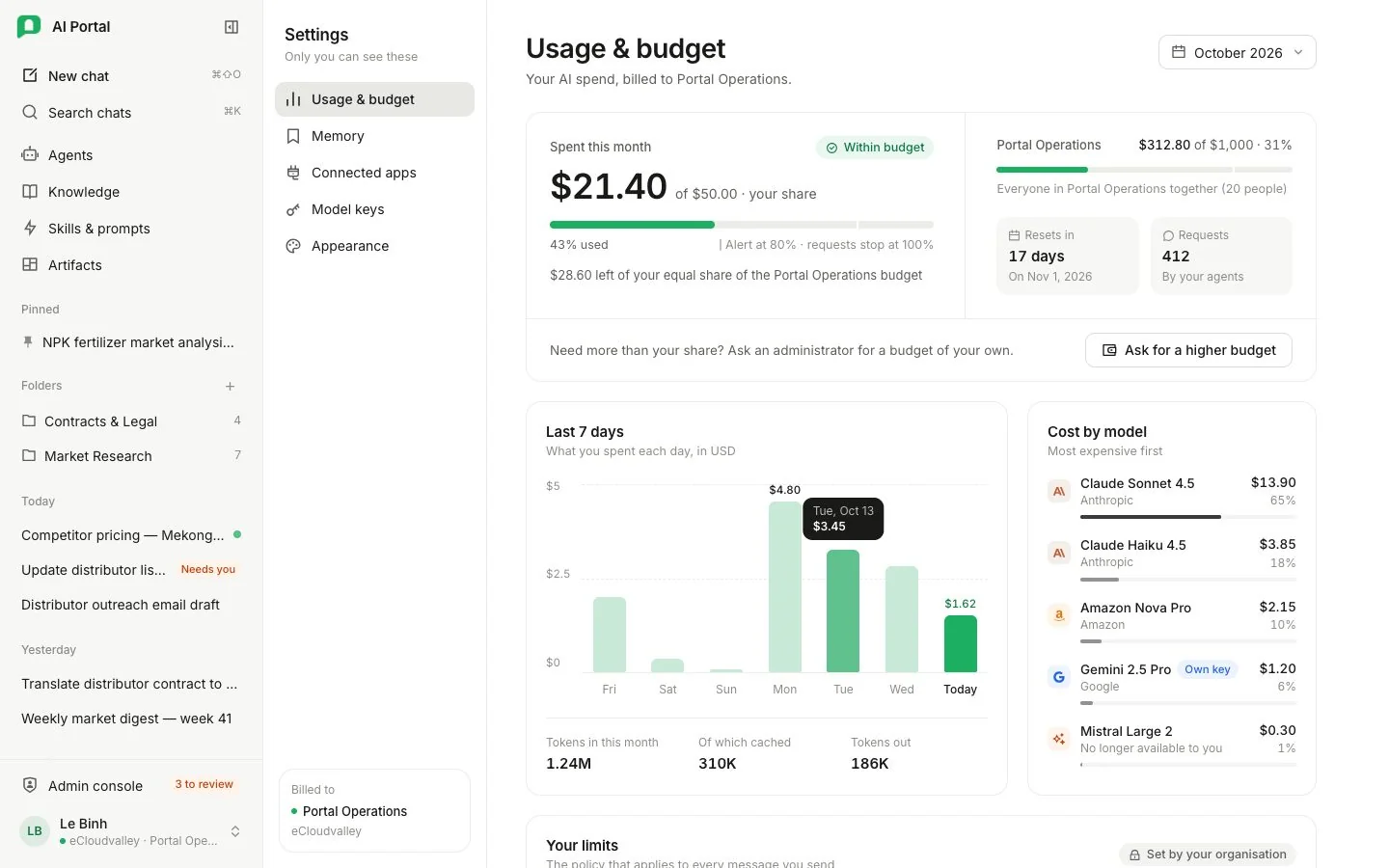
- 1 Usage & budget
- 2 Memory
- 3 Connected apps
- 4 Model keys
- 5 Appearance — light, dark or system theme.
| Page | What it’s for |
|---|---|
| Usage & budget | What you spent and your share of the department budget. Read more |
| Memory | What agents remember about you. Read more |
| Connected apps | Apps agents may use on your behalf. Read more |
| Model keys | Your own keys for models outside Amazon Bedrock. Read more |
| Appearance | The portal’s theme. |
Search (⌘K)
⌘K (or Ctrl K) opens one search box for conversations, agents, knowledge and portal pages.
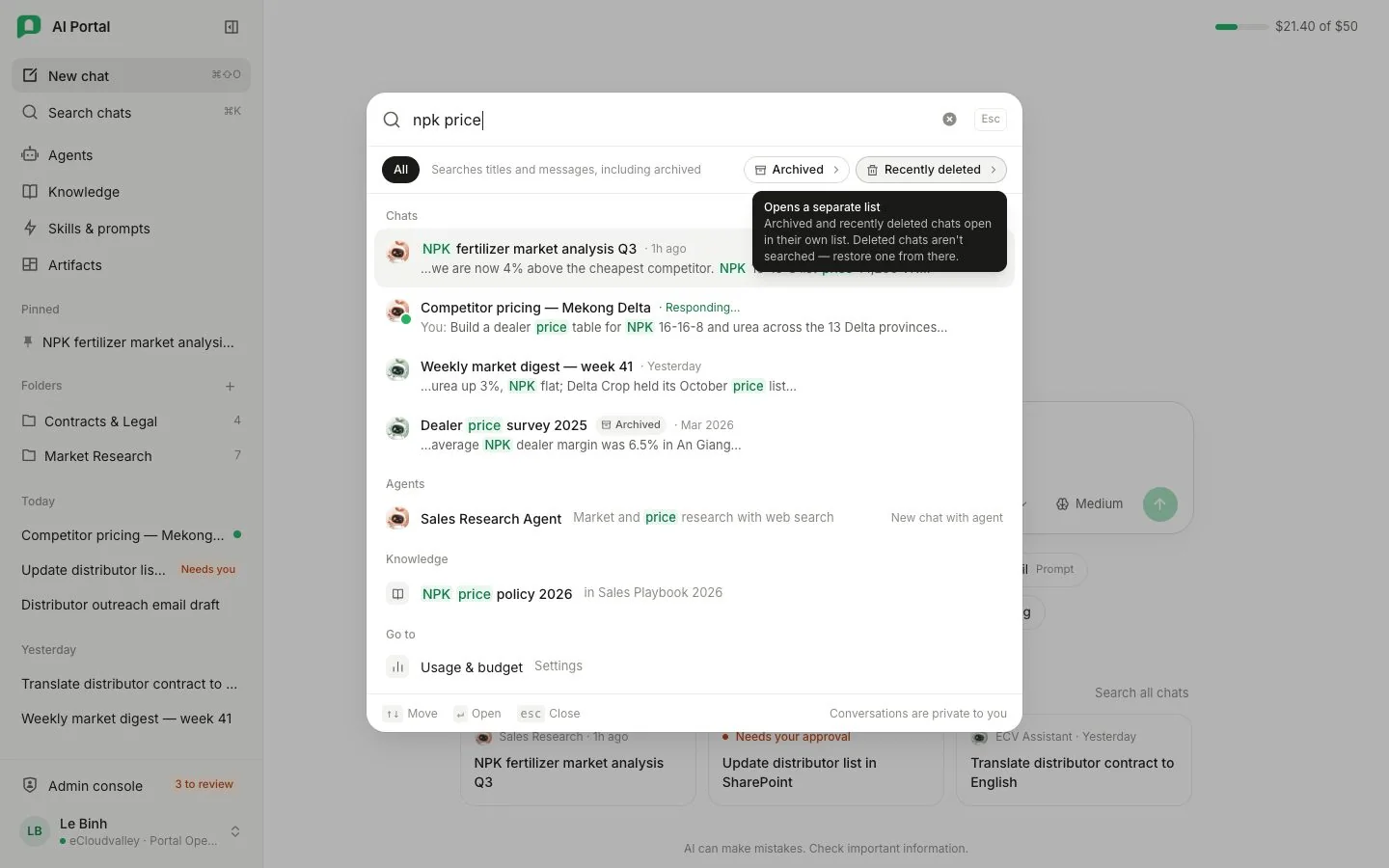
- 1 Type a word from a title or a message.
- 2 Archived and Recently deleted open their own lists.
- 3 Chats — matches in titles and messages, archived included.
- 4 Agents — start a new chat with one.
- 5 Go to — jump to a screen such as Usage & budget.
On a phone or tablet
The rail becomes a drawer behind the menu button. Conversation actions that need a hover on a desktop are always visible, and Enter in the message box starts a new line — use the send button to send.