

Sign in
The first sign-in, what the department badge means, accepting an invitation and signing out.
The portal never holds your password. You sign in with your company account — Microsoft Entra ID or Okta — on your company’s own sign-in page, then come back to the portal.
Sign in
-
Choose Sign in with Microsoft
Open the portal and choose Sign in with Microsoft — or Sign in with Okta, whichever your company uses. There is nothing to type first.
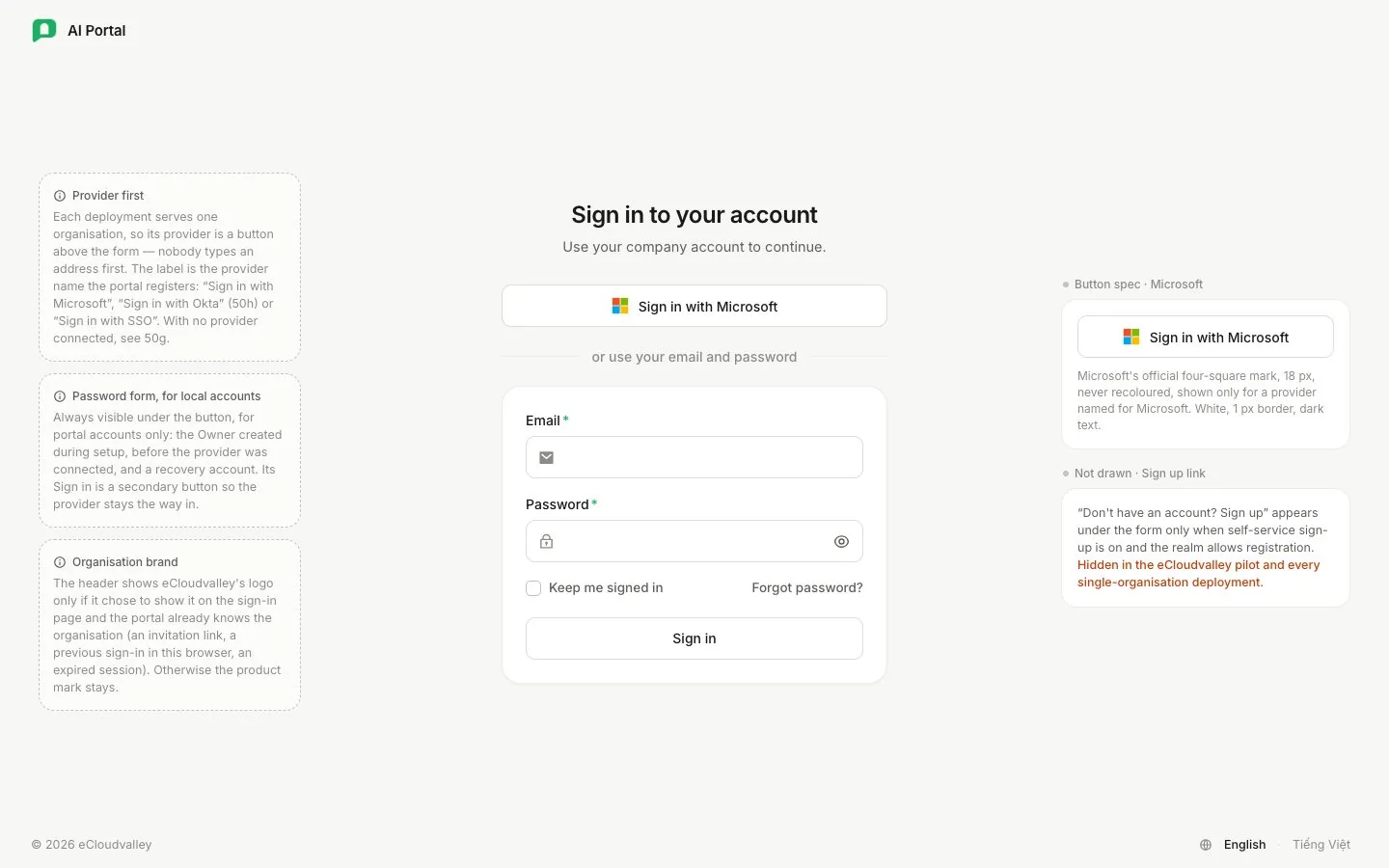
- 1 Sign in with Microsoft — your company account, the usual way in.
- 2 Email and password — only for an account the portal holds itself.
- 3 Sign in — sends the password form; not needed with a company account.
-
Sign in at your company
Microsoft’s or Okta’s page opens. Sign in as you always do, including any extra verification your company asks for. If you are already signed in to it in this browser, this step can pass in a moment.
-
Back in the portal
You land on the chat home screen, greeted by name. The badge under your name at the foot of the rail shows your organisation and your department.
Signing in with a password
Under the button, or use your email and password leads to a form for accounts the portal holds itself: the Owner created during setup, before the company sign-in was connected, and a recovery account for when it is down. Company accounts have no portal password, so use the button above.
Fill in Email and Password and choose Sign in, or Forgot password? for a reset link. Keep me signed in shows when your organisation allows it. Until an administrator connects Microsoft or Okta, the screen shows only this form.
The department badge
Your departmentDepartmentPhòng banThe bucket that pays: it owns a budget, limits and which models its people may use. Everyone belongs to exactly one.Open in glossary is the cost bucket every request is billed to. It sets your shared budget, your rate limit and which chat models the message box offers. An administrator changes it, or your identity provider does when your directory comes from Entra ID. Read more in Departments.
You don’t have access yet
If you sign in but nobody has added you to the organisation, you see You don’t have access yet. Only an administrator can let somebody in.
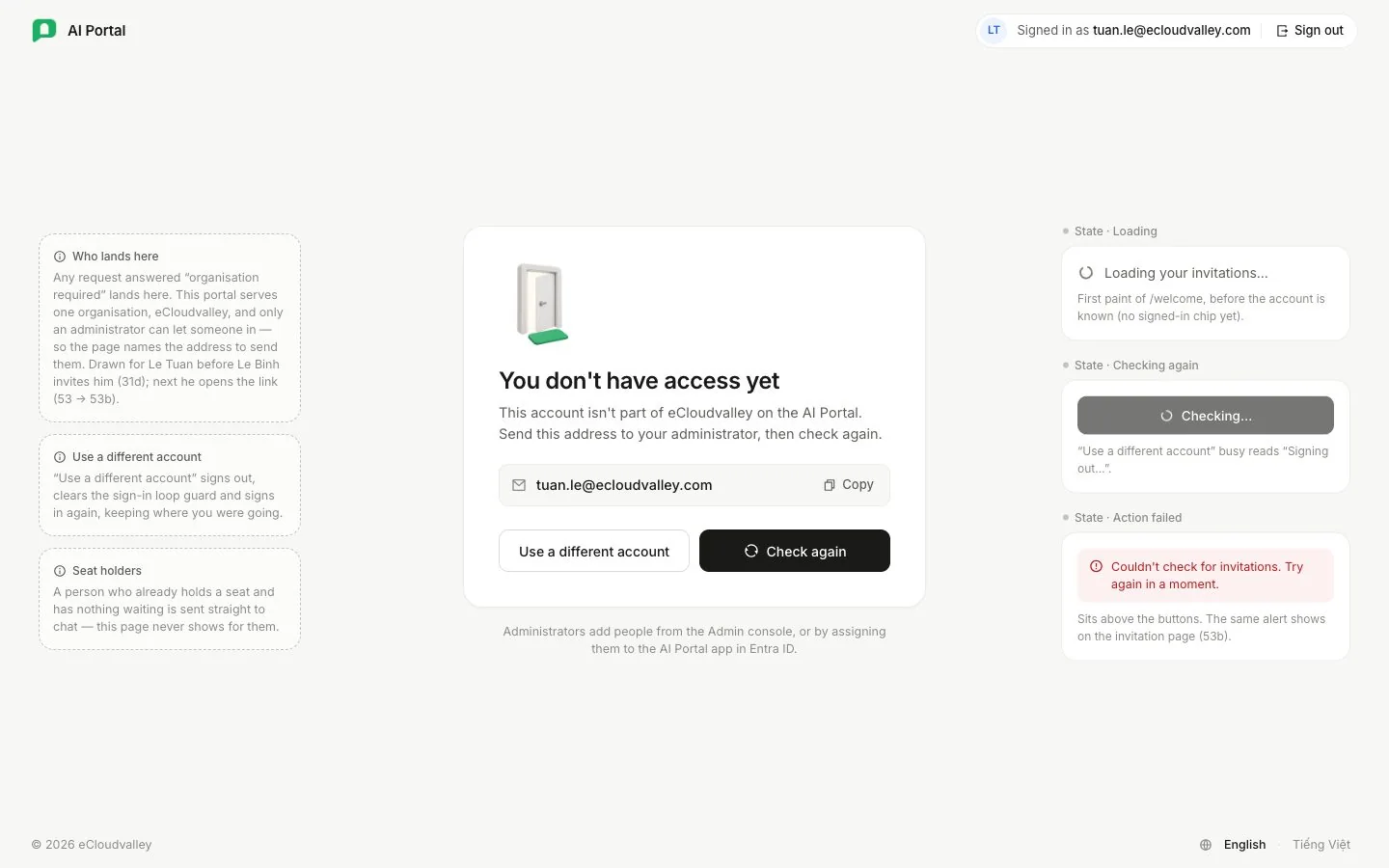
- 1 Your address — copy it and send it to your administrator.
- 2 Use a different account — signs out so you can sign in again.
- 3 Check again — once you've been added or invited.
Administrators add people from the Admin console, or by assigning them to the portal’s app in Entra ID. An account with no seat sees its invitations listed here when it signs in, each with the role, department, inviter and time left. When none is waiting, the page says so and names the address you signed in with.
Accepting an invitation
An invitation is matched by email address, so sign in with the address it was sent to. The link in it opens a page naming the organisation, who invited you, the role you would hold, the department you would be Billed to, and when the invitation expires. Decline turns it down; Join followed by the organisation’s name takes the seat.
| The link page says | Meaning |
|---|---|
| This invitation was sent to a different address | You are signed in as somebody else. Sign in with another account switches. |
| You have already taken up this invitation | You already have your seat — just open the portal. |
| This link is no longer usable | It expired, was withdrawn or was already used. Ask whoever invited you for a new link. |
Signing out
Signing out from the menu under your name ends the portal session. Entra ID may still hold its own live session, so signing back in can be immediate.
Still stuck? See the sign-in entries in Troubleshooting.