Sign-in
How the sign-in screen routes a person to your company's provider, how a failed login recovers, and where the sign-in screens come from.
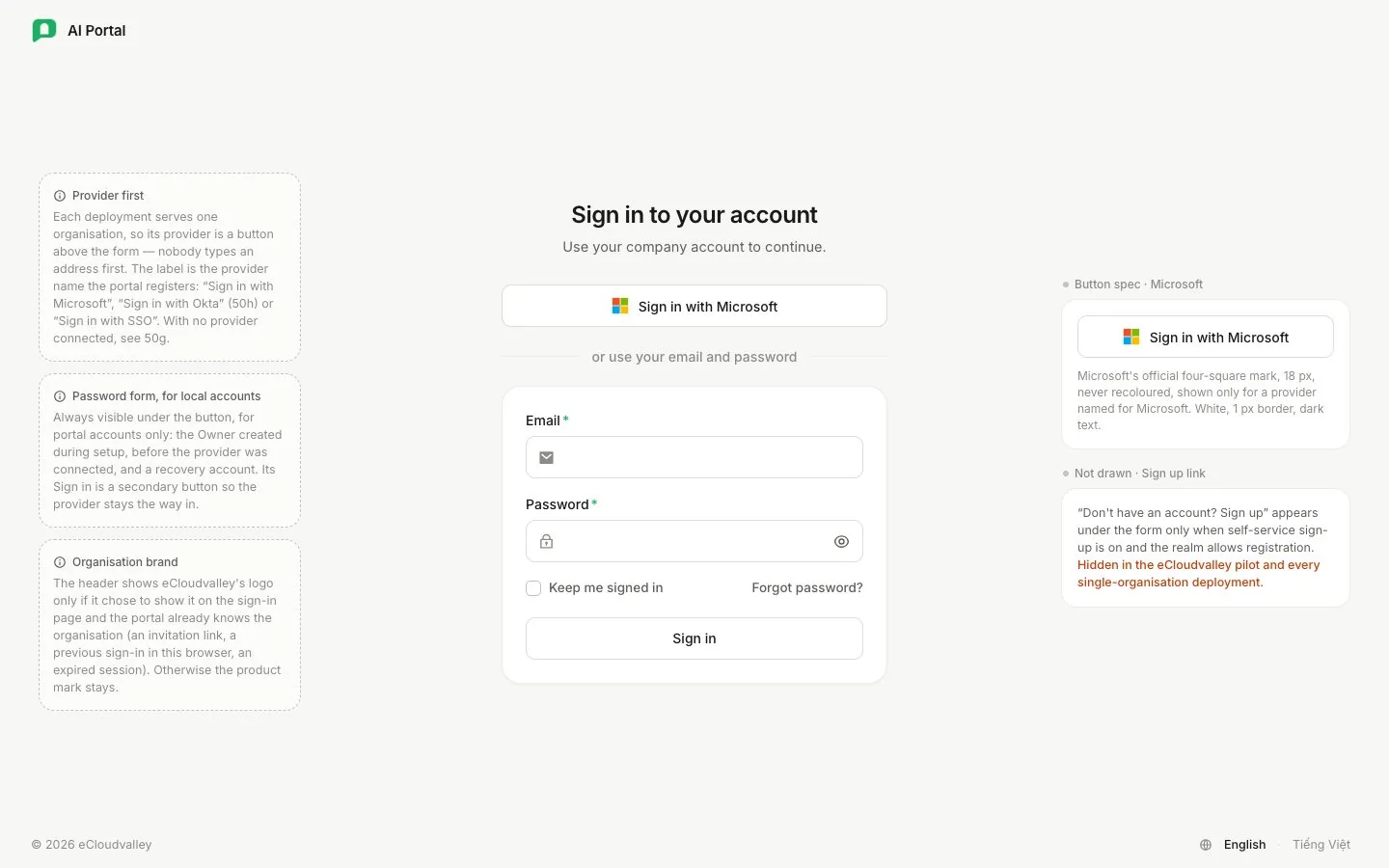
People sign in on screens that Keycloak renders in the portal’s own look. Each deployment serves one organisation, so its provider is a button on the first screen and nobody types an address first; the password never passes through the portal. For the step-by-step version for employees, see Sign in.
Key rules
- Provider first. The screen opens with your provider’s button: Sign in with Microsoft, Sign in with Okta or Sign in with SSO.
- Your provider authenticates. Entra ID or Okta signs the person in, with its own MFA, and hands them back.
- Only portal-held accounts use the password form. It sits under the button, for the Owner created at setup and a recovery account.
- The password never reaches the portal. Keycloak handles every credential.
- Signing out ends both sessions, the portal’s and Keycloak’s.
Sign-in flow
-
Open the portal
The portal backend redirects the browser to Keycloak.
-
Choose the provider button
Keycloak shows the provider button and, under it, the password form. The button sends the browser to Entra ID or Okta; Entra ID sends back a token carrying
upn. An account held in the portal itself fills in the form instead. -
Keycloak hands the login to the portal
The portal exchanges the OIDC code for tokens. The backend keeps the tokens.
-
The portal reads the seat
The portal reads the person’s seat in the organisation: department, role and whether they are suspended. See Organisation and seats.
-
The browser gets a session cookie
The person lands in the portal. From now on every request is checked as described in Request authentication.
A later step, such as a one-time code, shows the address and offers to change it, which restarts the flow. The provider button carries the name the portal registered: Sign in with Microsoft (with Microsoft’s four-square logo), Sign in with Okta or Sign in with SSO.
What the screen shows
| Situation | What the person sees |
|---|---|
| A provider is connected | “Use your company account to continue.”, the provider button, “or use your email and password”, then the password form with a secondary Sign in |
| No provider yet (first run) | “Enter your email and password.” and the password form alone, with Sign in as the main button |
To register a provider, see Connect Entra ID or Connect Okta.
Provider rules
| Rule | Detail |
|---|---|
| Address claim | upn for Entra ID, email for every other provider |
| Issuer | Must name one directory. Microsoft’s three common endpoints stand for every tenant and are refused |
| Client secret | Crosses into Keycloak once and is sealed |
| Email domain | Belongs to your organisation and is checked before anything is written. Registering the provider again corrects the domain |
| Stored address | The provider’s login identifier, not the mailbox. A provider sending a bare login name is the exception |
Sign-in recovery
The login callback is a page the browser is sitting on, so it answers with a redirect, never an error body. Where it sends the browser depends on what the browser is carrying.
- A login state the portal cannot place. This covers three cases it cannot tell apart: an expired attempt, a spent one, and a browser missing its binding cookie.
- If a session cookie is already there, the login worked and this callback is a second copy, so the browser goes into the app.
- Otherwise the portal starts the login once more and marks the browser while it does. A successful login clears the mark.
- Every other outcome goes to the sign-in screen at
/sign-in-failed, which names one of five reasons.
The five reasons:
- an expired attempt that the one retry did not fix;
- a provider that stopped before reaching the portal (the provider refusing is not retried, because a second attempt reaches the same answer);
- an account with no directory row;
- an account whose access was withdrawn;
- anything else.
The login flow and the cookie binding it both last ten minutes, so they expire together.
Sign-in screens
Signing in, registering, recovering a password and verifying an address happen on pages Keycloak renders. They are written in React from the app’s own components and compiled into one theme. Seven screens are covered: the five a person passes through and the two an interrupted flow ends on. The rest keep Keycloak’s stock appearance.
| Element | Comes from |
|---|---|
| Registration fields | Keycloak’s declaration of a user |
| Remember me, password recovery and register offers | Keycloak settings |
| Error text | Keycloak’s own |
Signing out ends both sessions. The portal ends Keycloak’s session itself and answers the browser with an empty response. Keycloak’s own sign-out confirmation page is themed too, for a sign-out that began elsewhere.
Why it works this way
Why the credential never passes through the portal
A portal-served form posting the password to Keycloak’s token endpoint was considered and rejected. It would:
- put a password inside the product;
- be unable to carry multi-factor authentication;
- turn every required action into an error code;
- leave a brokered provider on a second path.
Why the browser is marked during a retry
Without the mark, a callback that keeps failing would bounce the tab between the portal and the provider for as long as the tab stays open. The mark stops the second failure from starting a third attempt.
Why the stored address is the login identifier
Entra ID sends userPrincipalName as the SCIM userName and mail as the work email, and its tokens carry only the first. Storing the mailbox refused authenticated people with a 401.
Under the hood
How sign-out reaches Keycloak
The portal ends Keycloak’s session over Keycloak’s administrative interface. It does not send the browser to Keycloak’s sign-out address, because that address wants the identity token as a query parameter and answers with a confirmation page.
Address-first sign-in on multi-organisation installs
An install serving several organisations — development and docs capture, never an ECV customer deployment — registers each provider with its organisation’s email domain instead of as a button. Keycloak then asks for an address first and sends a company address to its provider. Customer deployments run one organisation (SINGLE_TENANT), so they never show that step.